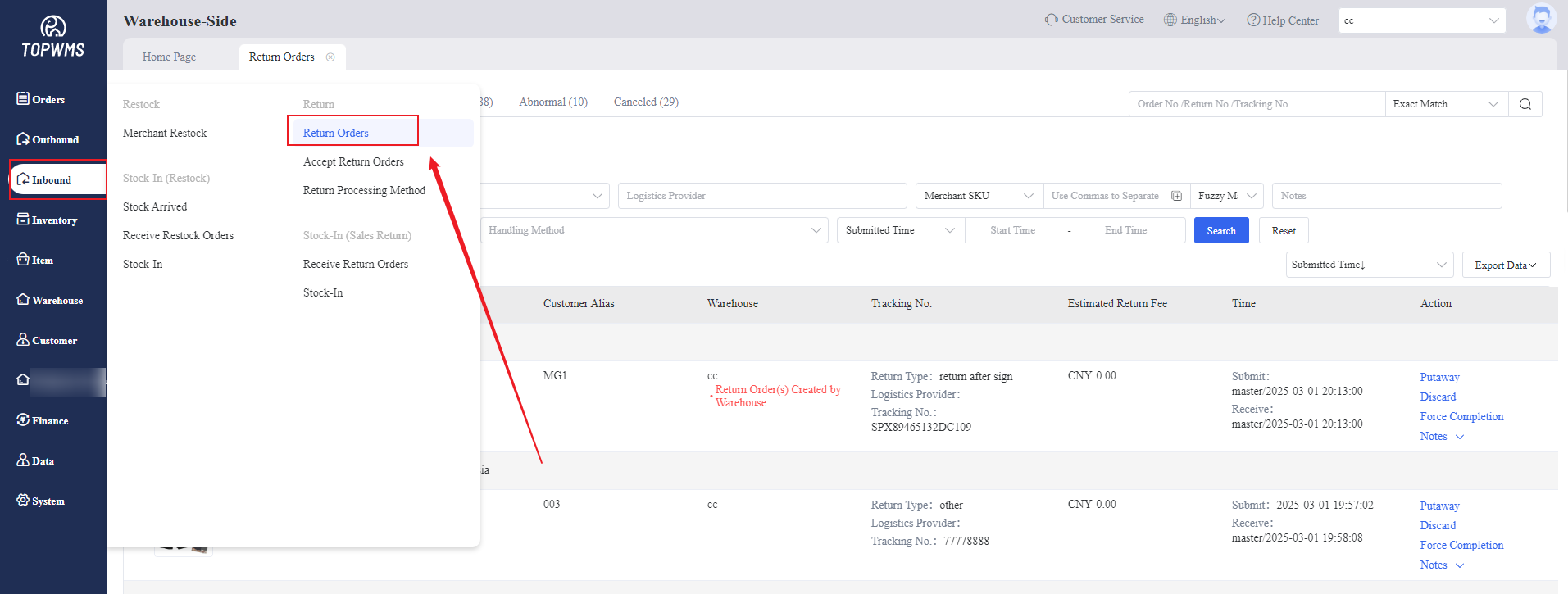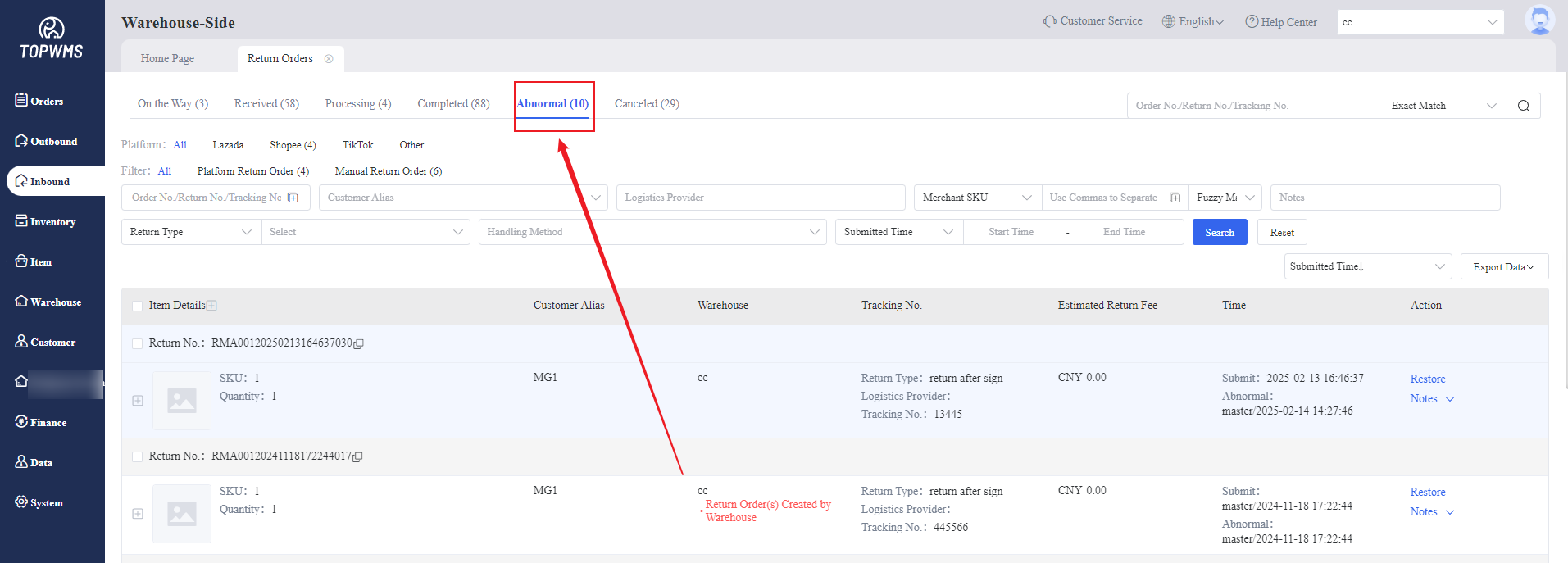
I. Introduction
1. After the merchant submits a return order on the merchant-side, when the return package is returned to the warehouse,the warehouse needs to receive return order and stock the items in the warehouse.
2. You can use PC and PDA to receive return orders. This tutorial explains how to use PC to receive return orders.
II. Tutorial Details
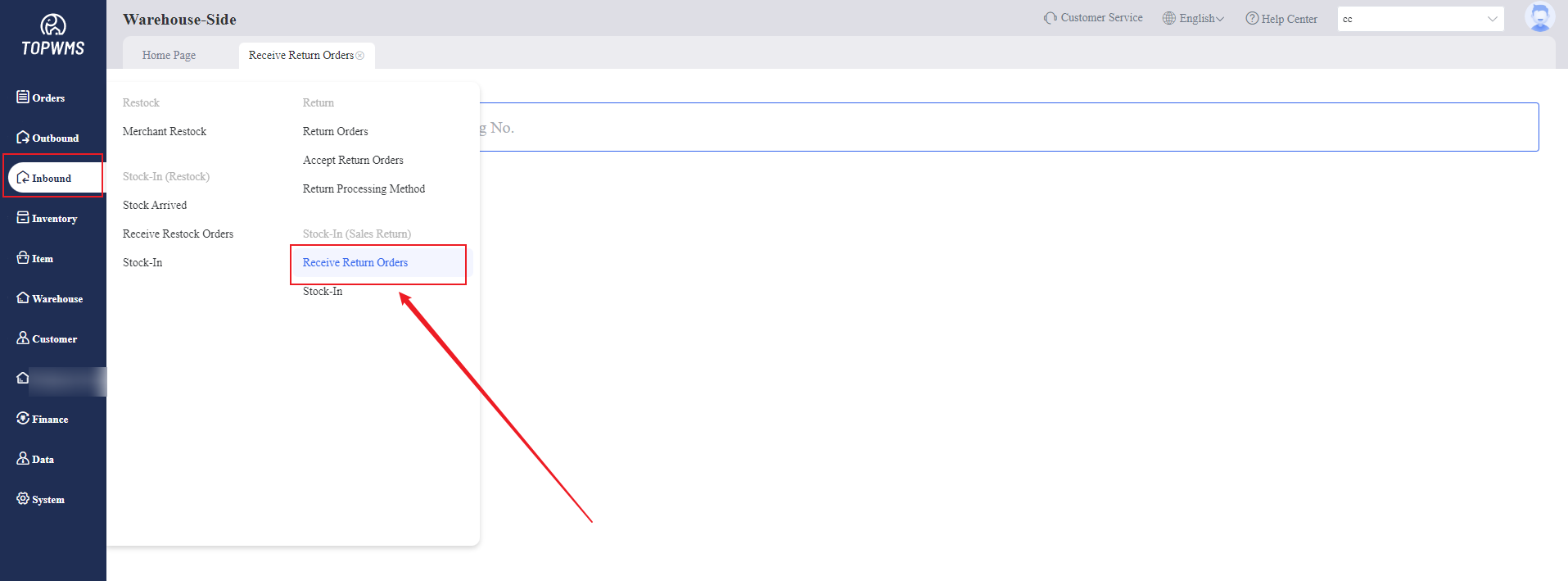
1. After the return package arrives at the warehouse, go to [Inbound] > [Receive Return Order] > Scan the Return Order No./Tracking No./Order No. on this page
2. Check the order information and items information and quantity
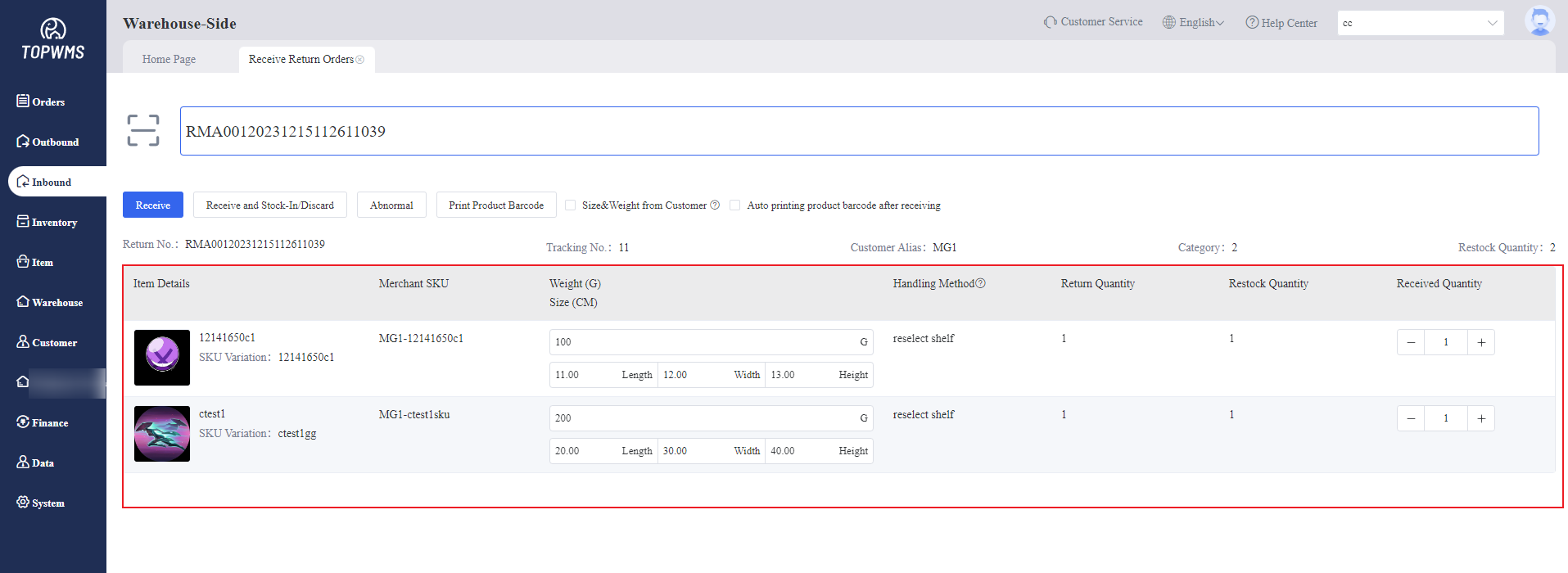
3. Choose the appropriate solution based on the following situations:
(1) If the receiving of the return order and the stocking-in of items are not done at the same time, they can be done separately.
The person responsible for receiving can directly click [Receive] to receive the return order first after checking the information.
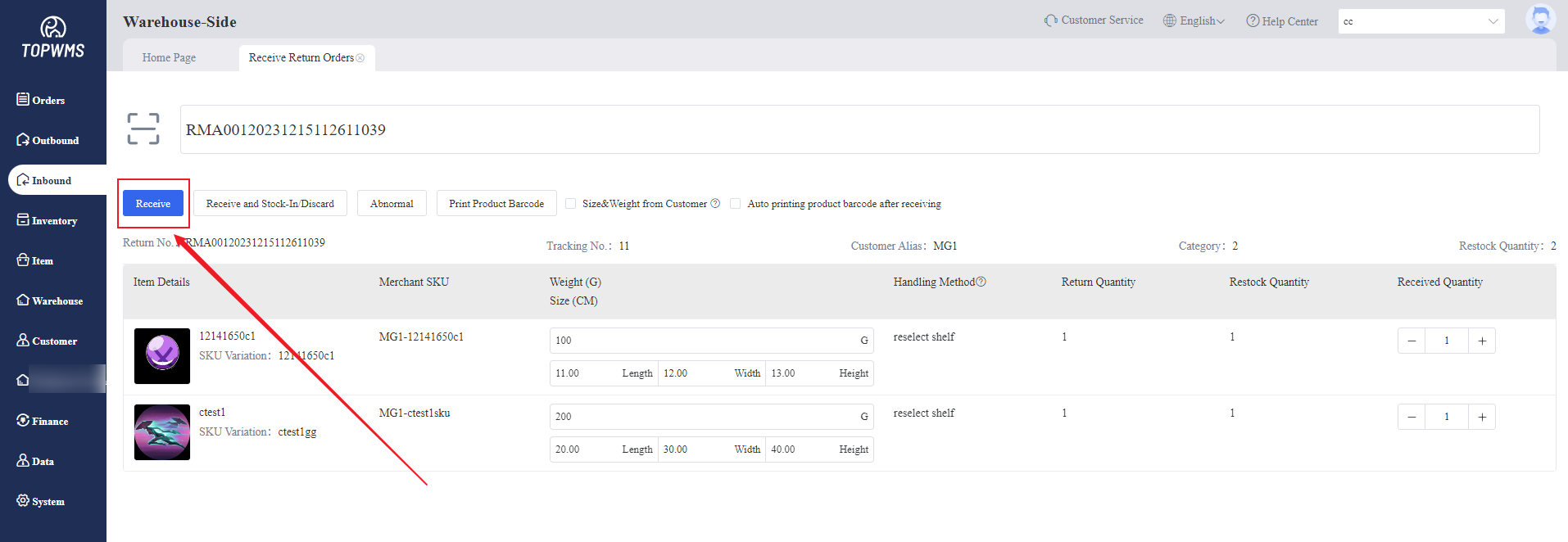
After receiving, the person responsible for stocking-in need to:
Enter [Inbound] > [Stock-In] page > Scan the return number > Check the information and quantity of items > Click [Stock-In] > Stock of items are increased
At this time, the stock-in fee will be deducted again.
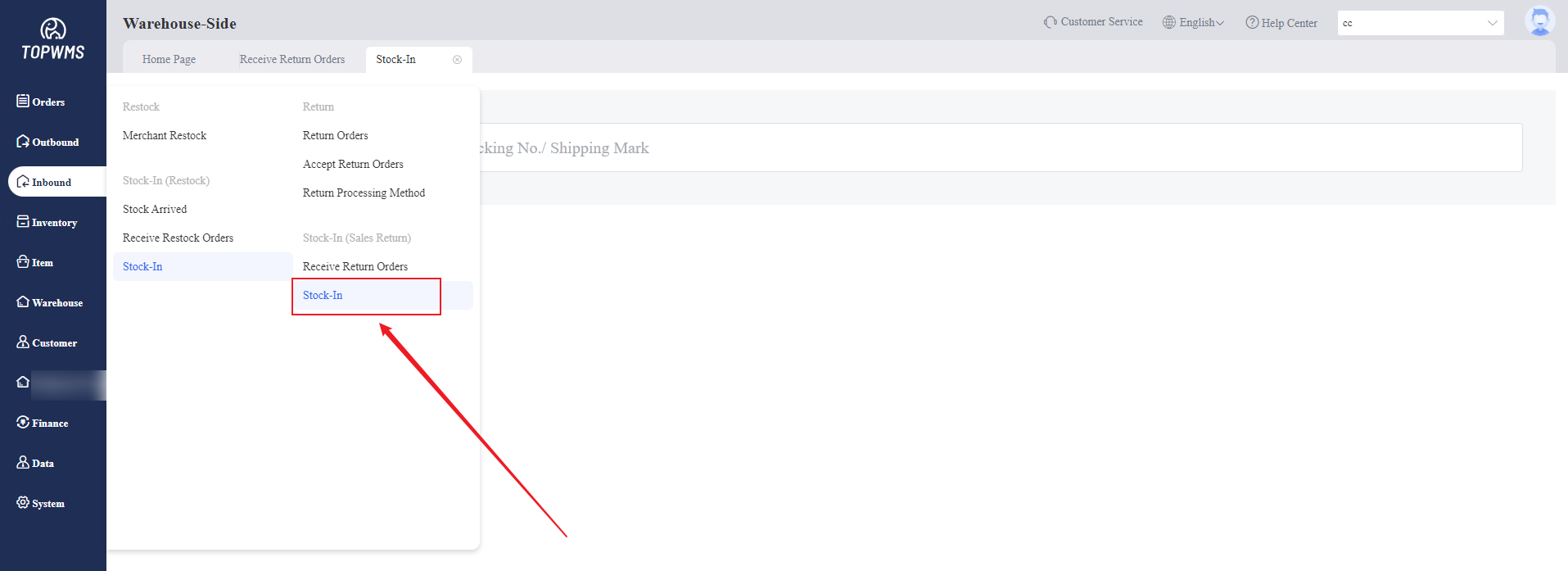
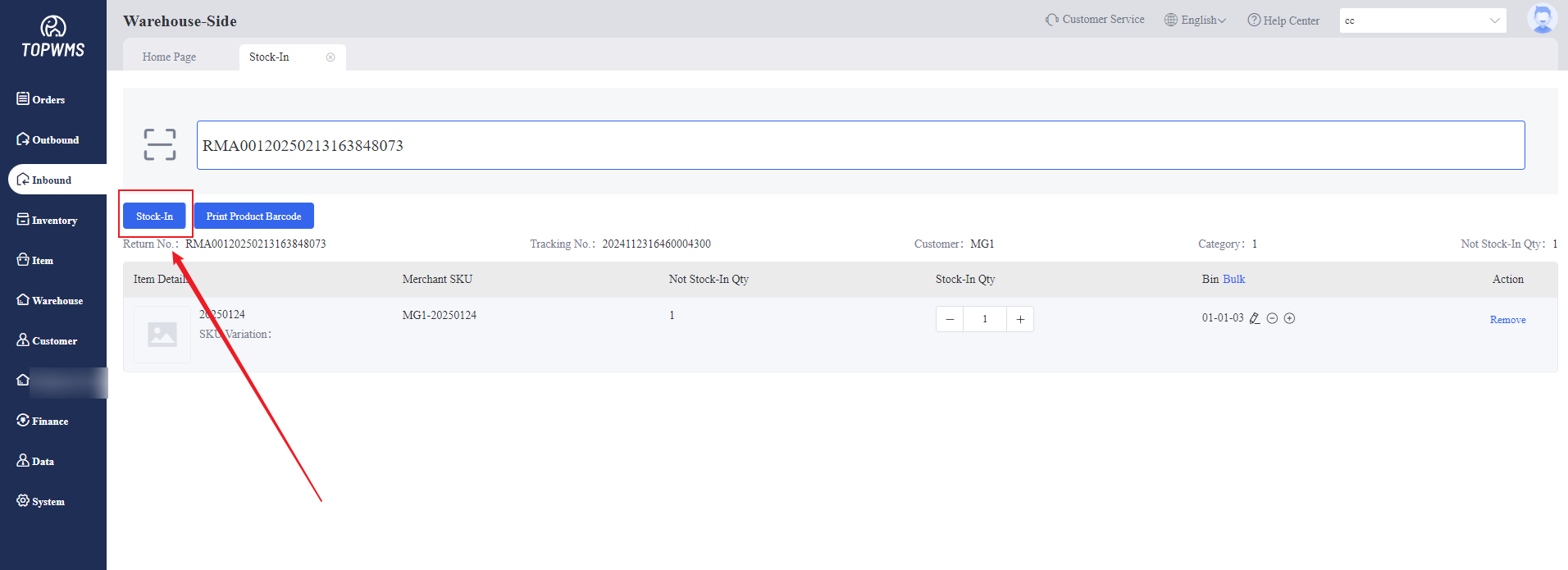
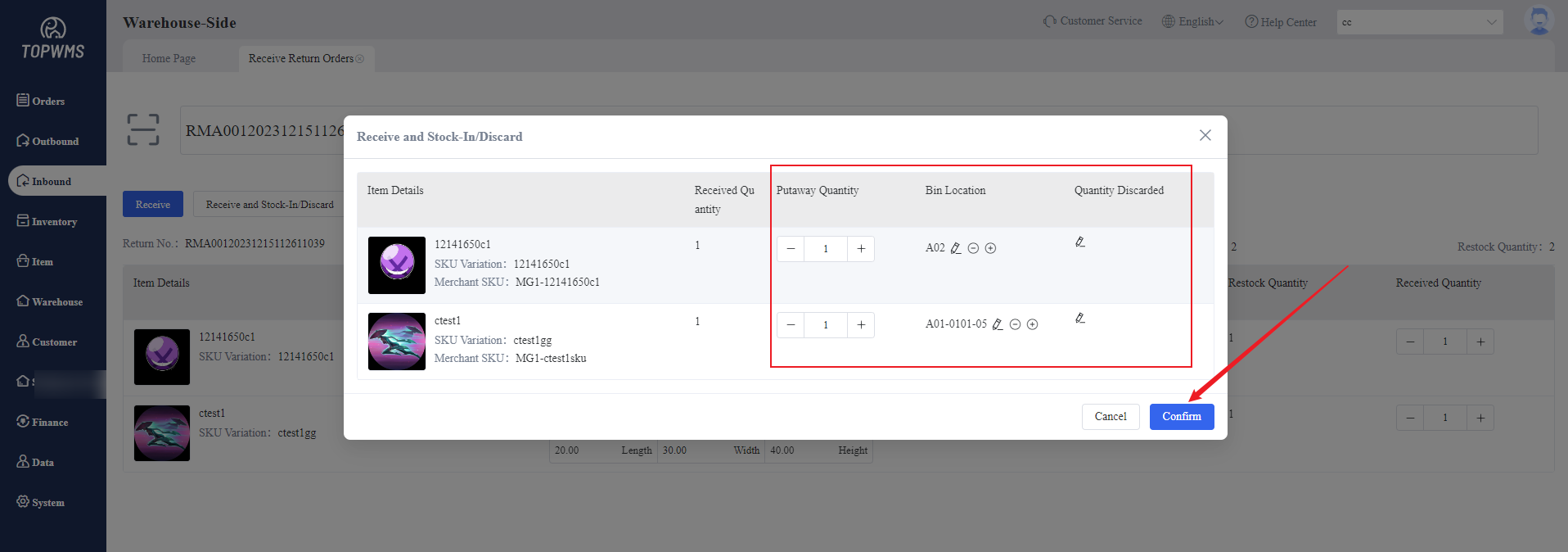
(2) If the receiving of the return order and the stocking-in of items are not done at the same time, they can be done simultaneously.
After scanning, click [Receive and Stock-In/Discard] > the quantity of items to be stocked-in and discarded, and bin location can be set in the pop-up window.
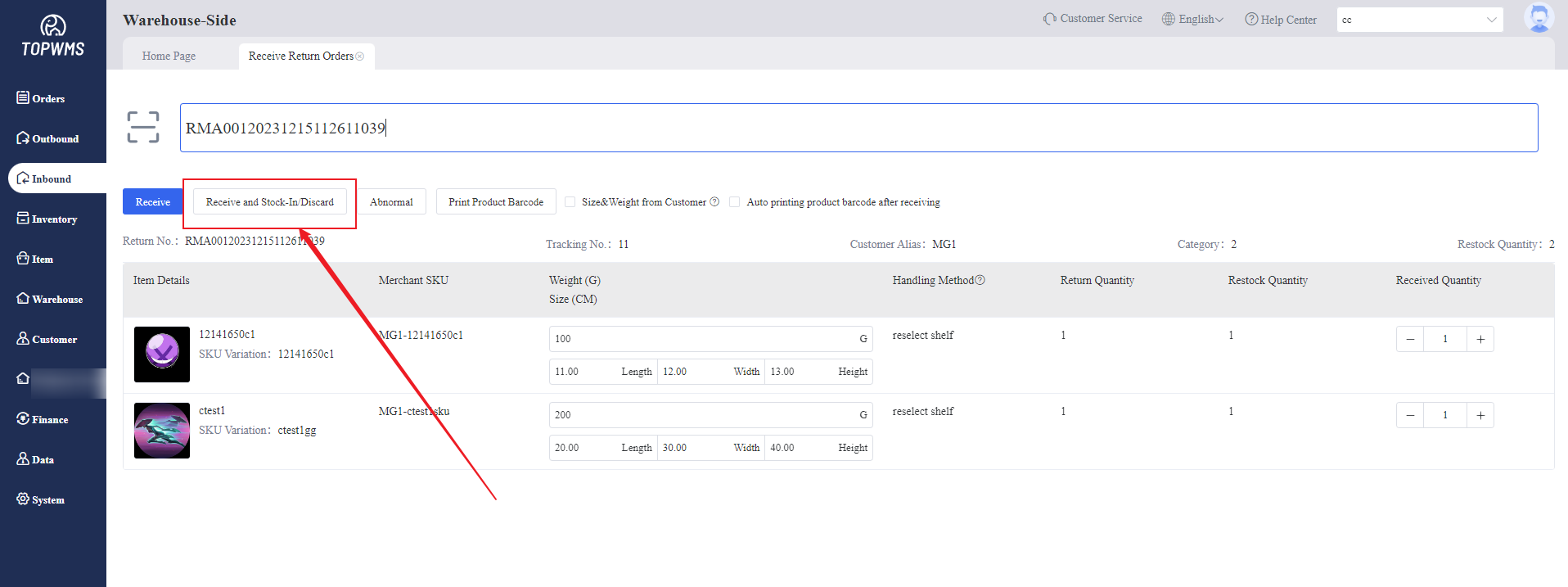
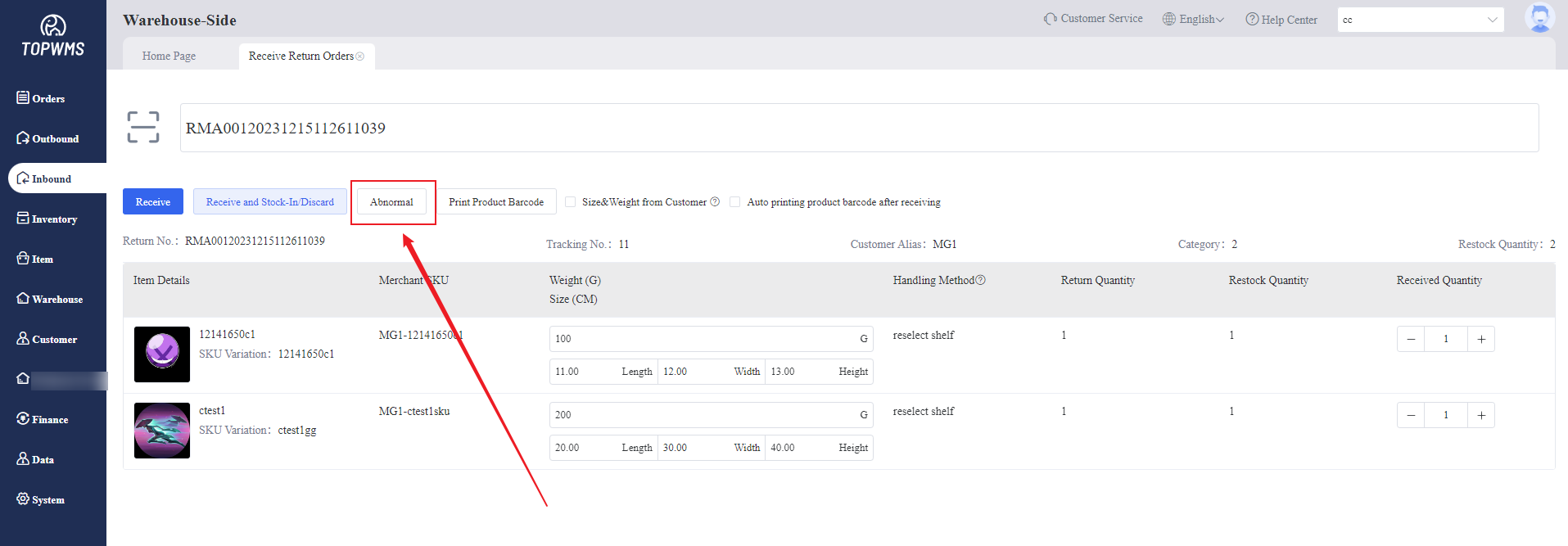
(3) If you encounter an abnormal order
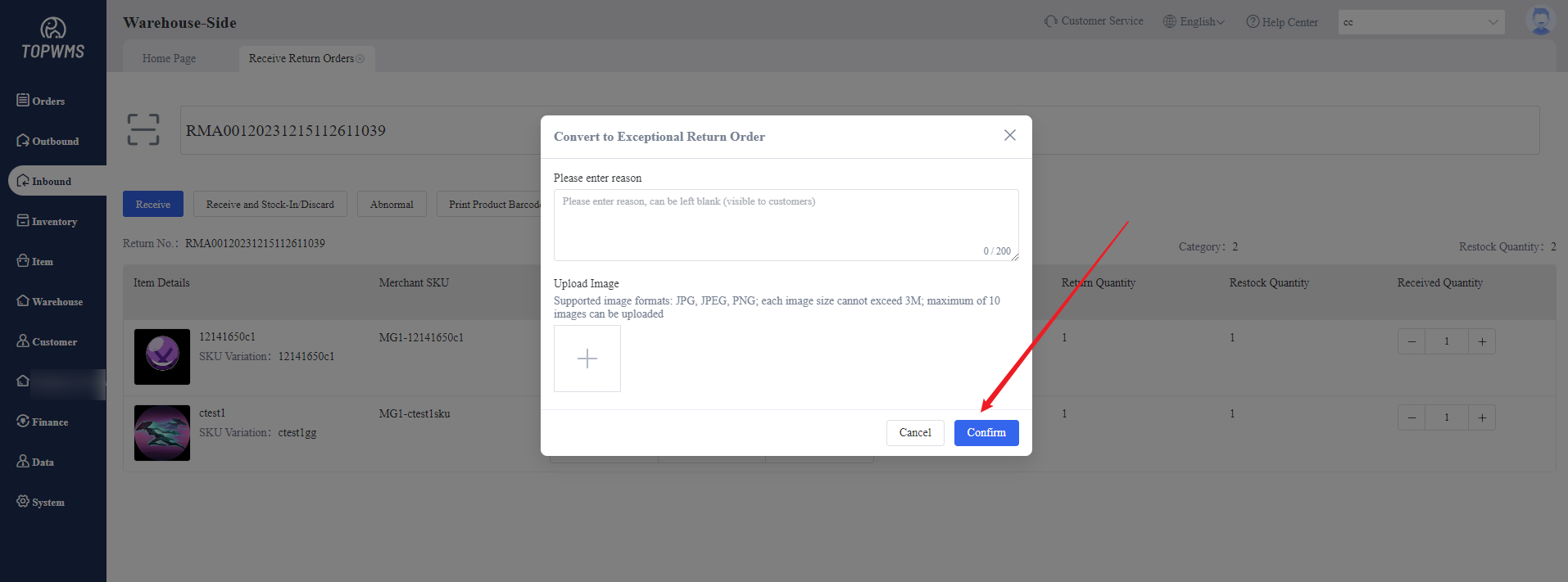
Click [Abnormal] > Enter the abnormal reason in the pop-up window, and a picture can be uploaded > Click [Confirm], the return order will be moved to ‘Abnormal’ status
(4) Click [Inbound] > [Return Orders] > [Abnormal], the abnormal return orders will be displayed on this page and also in the merchant-side.