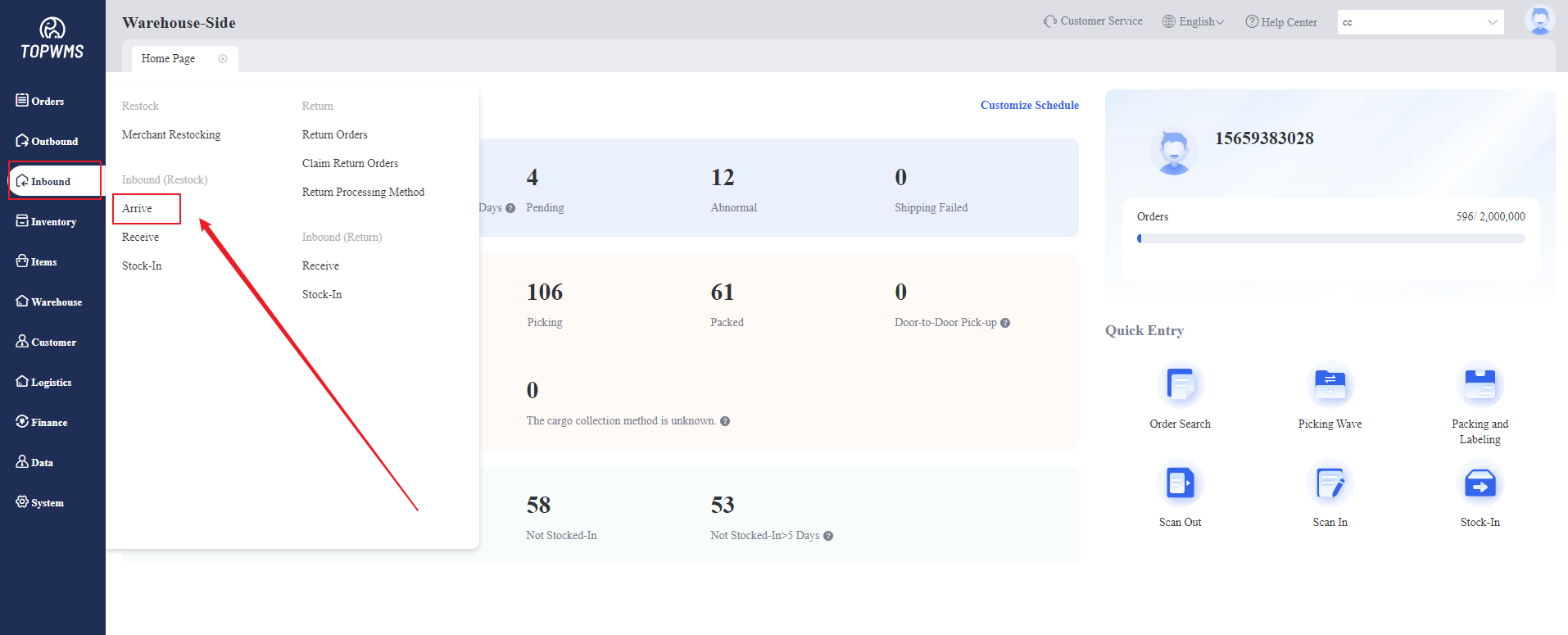
(1) Once the restocked items arrive at the warehouse
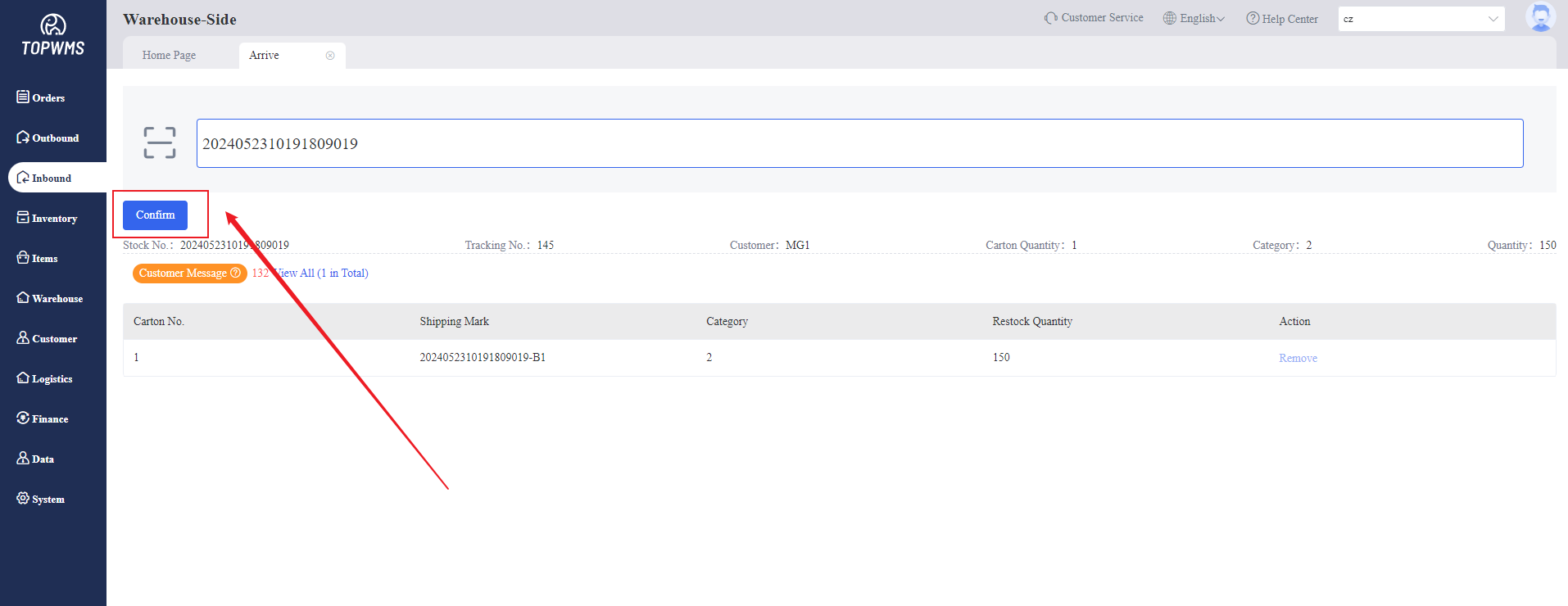
Click [Inbound] > [Arrive]
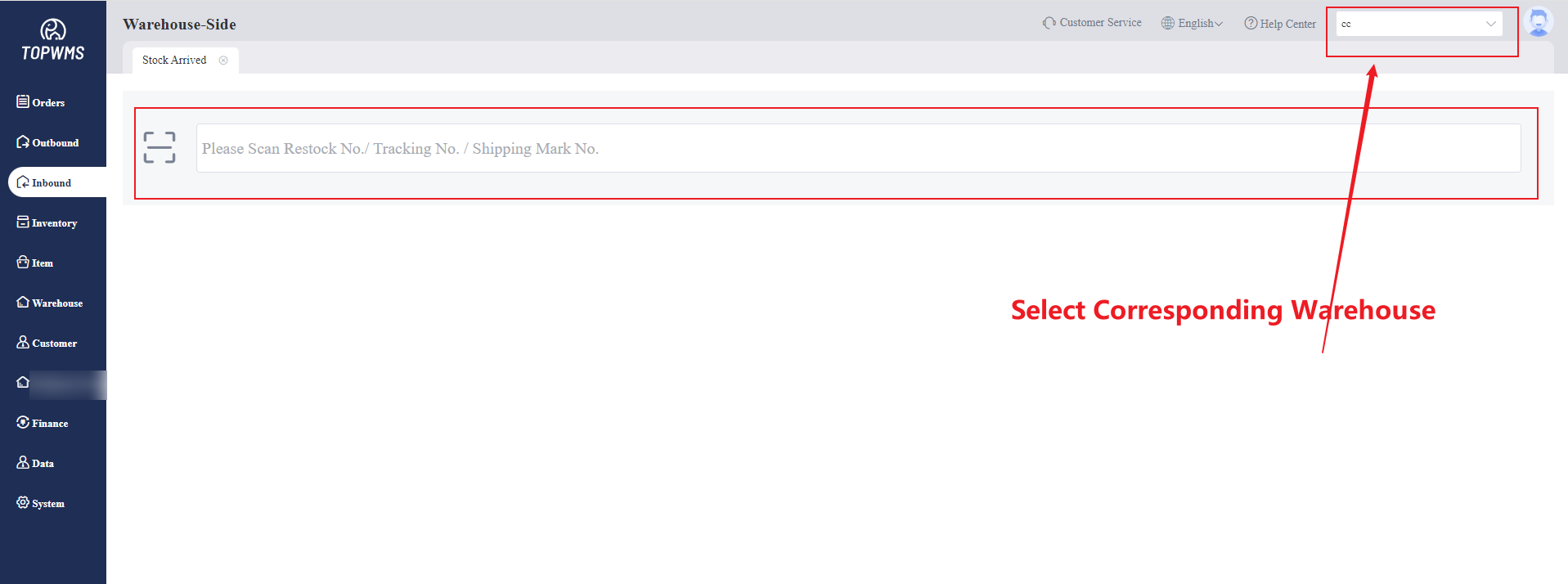
(2) Scan or enter the Restock Order No./ Tracking No./ Carton Label No.
Ensure that you have switched to the corresponding warehouse before scanning.
(3) Verify the item details and stock quantity, then click [Confirm]
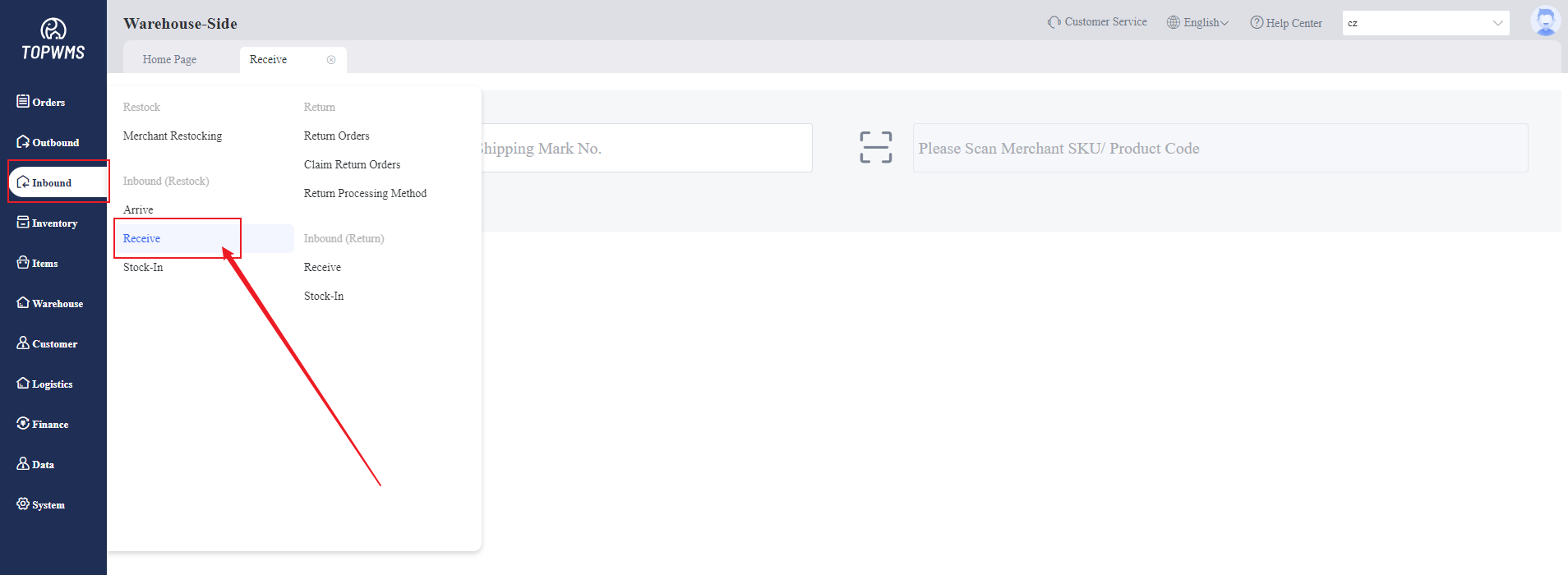
(4) Next, go to [Inbound] > [Receive]
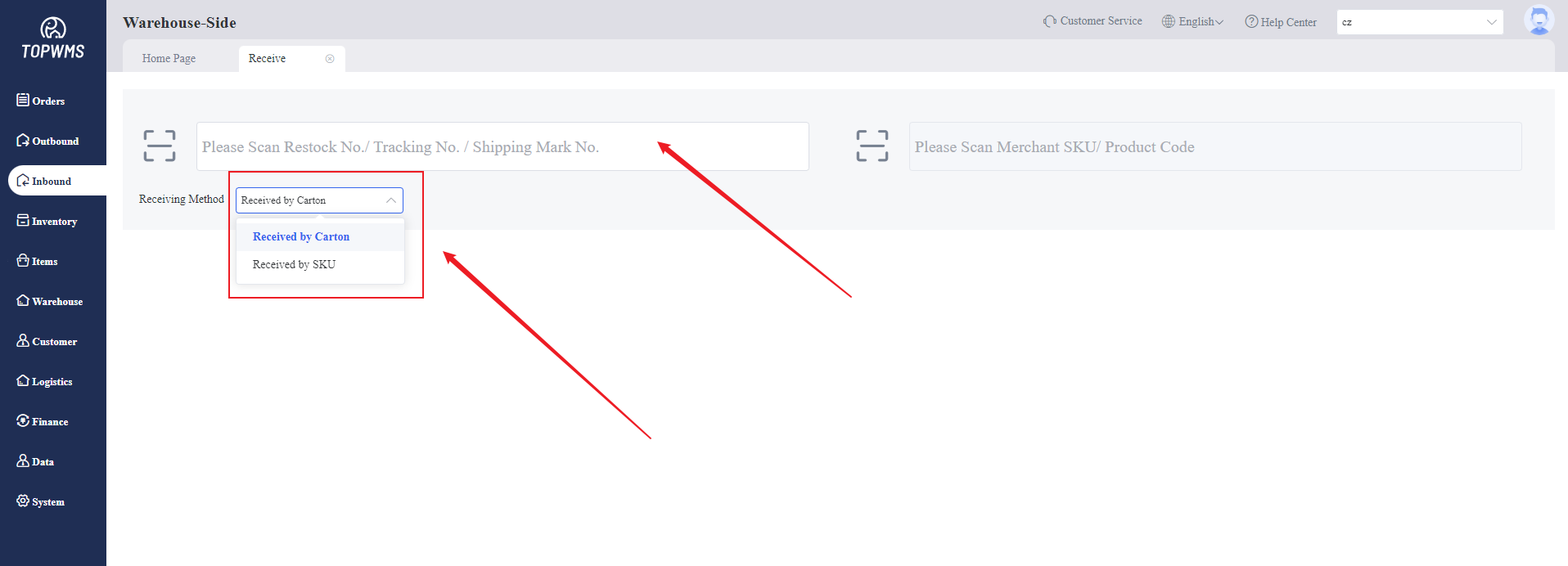
(5) Select the appropriate reception method, then scan or enter the Restock Order No./ Tracking No./ Carton Label No.
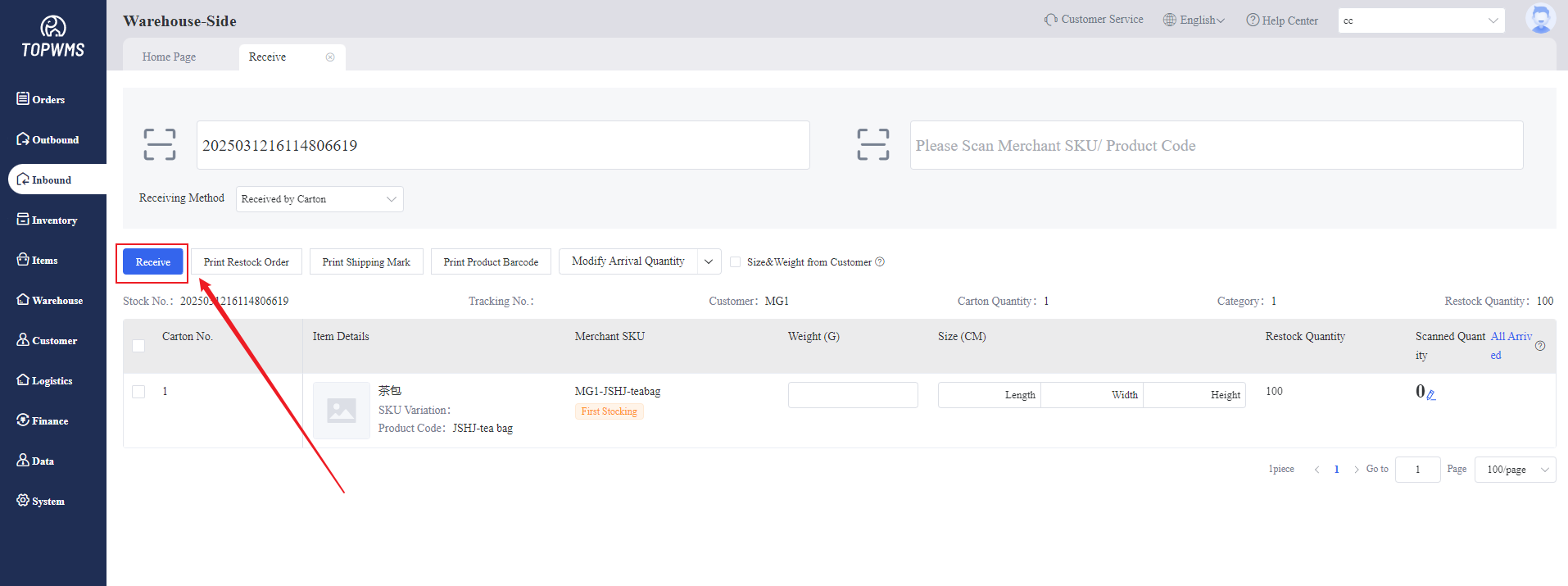
(6) After scanning, the system will recognize the restock order, then scan the Merchant SKU/Product Code, and verify the weight, dimensions, and quantity of items.
Printing Restock order, Carton Label and Barcode can be supported. Click [Receive] to complete the reception process.
(7) After reception, [Inbound] > [Merchant Restocking], where you can view restock orders that entirely received and partially received under the 'Receiving' status.
On this page, you can directly click [Stock-In] to put into storage.
For partially received restock orders, only the partially received quantity of items can be stocked into the warehouse.
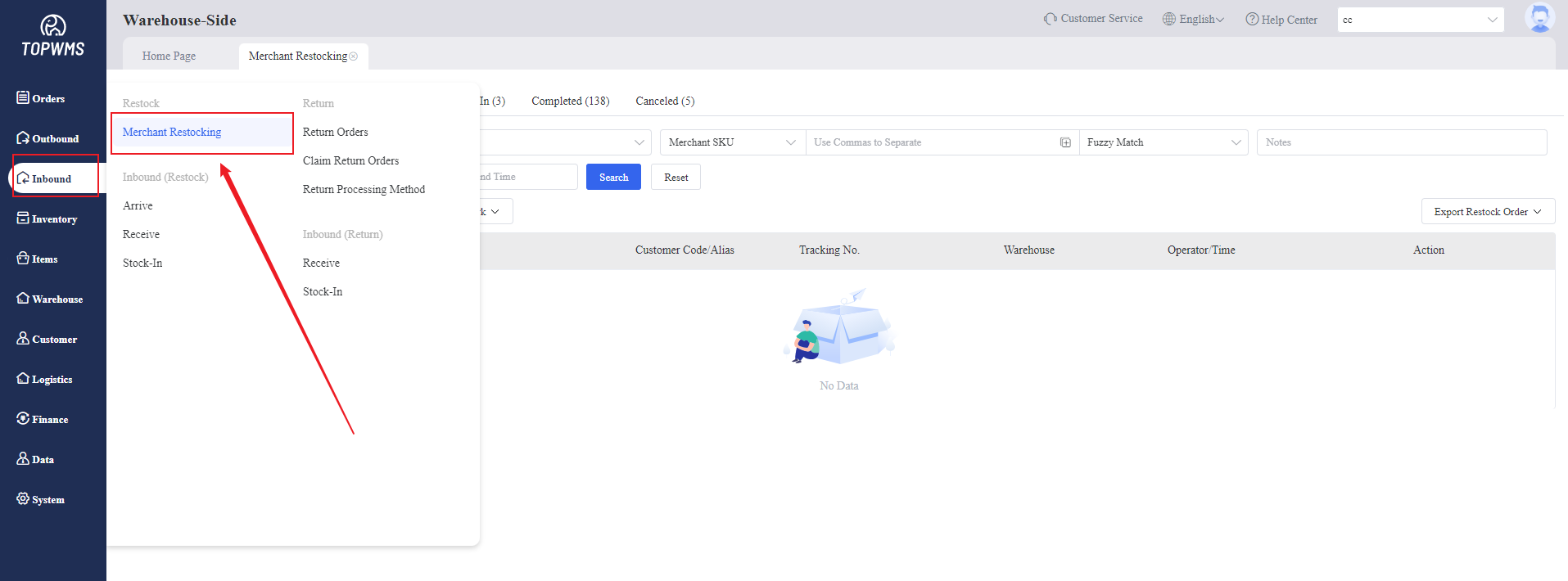
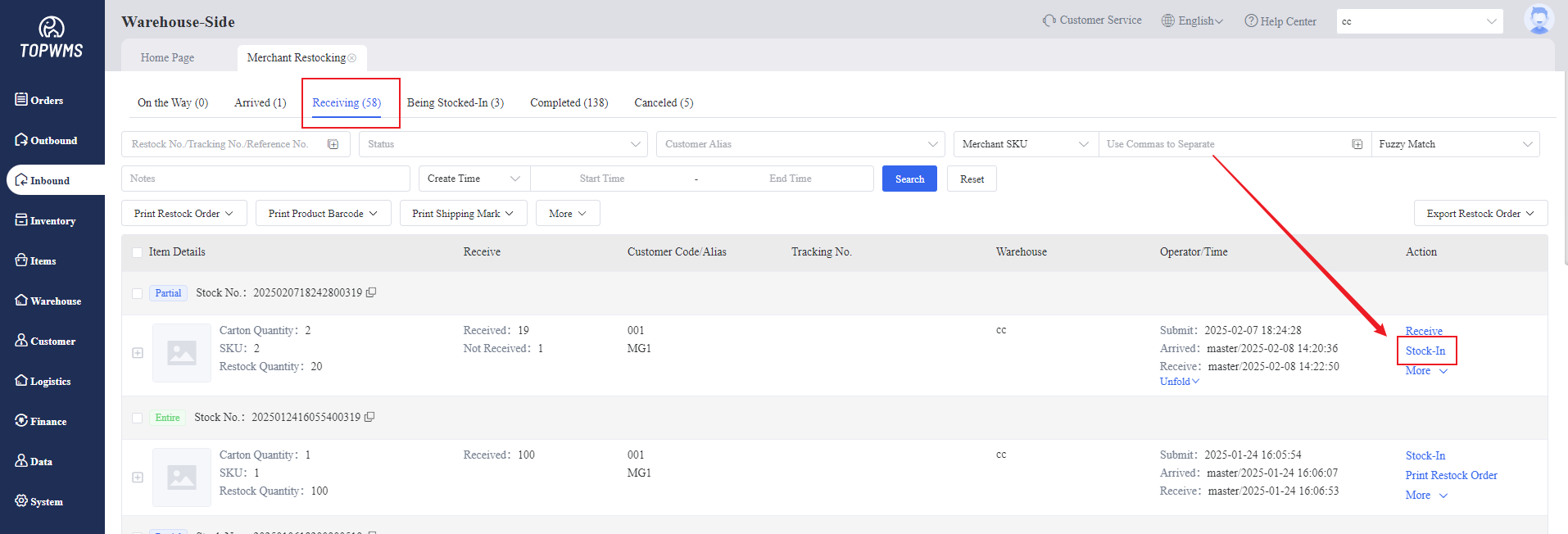
(8) After clicking, The corresponding restock order and items will be displayed directly.
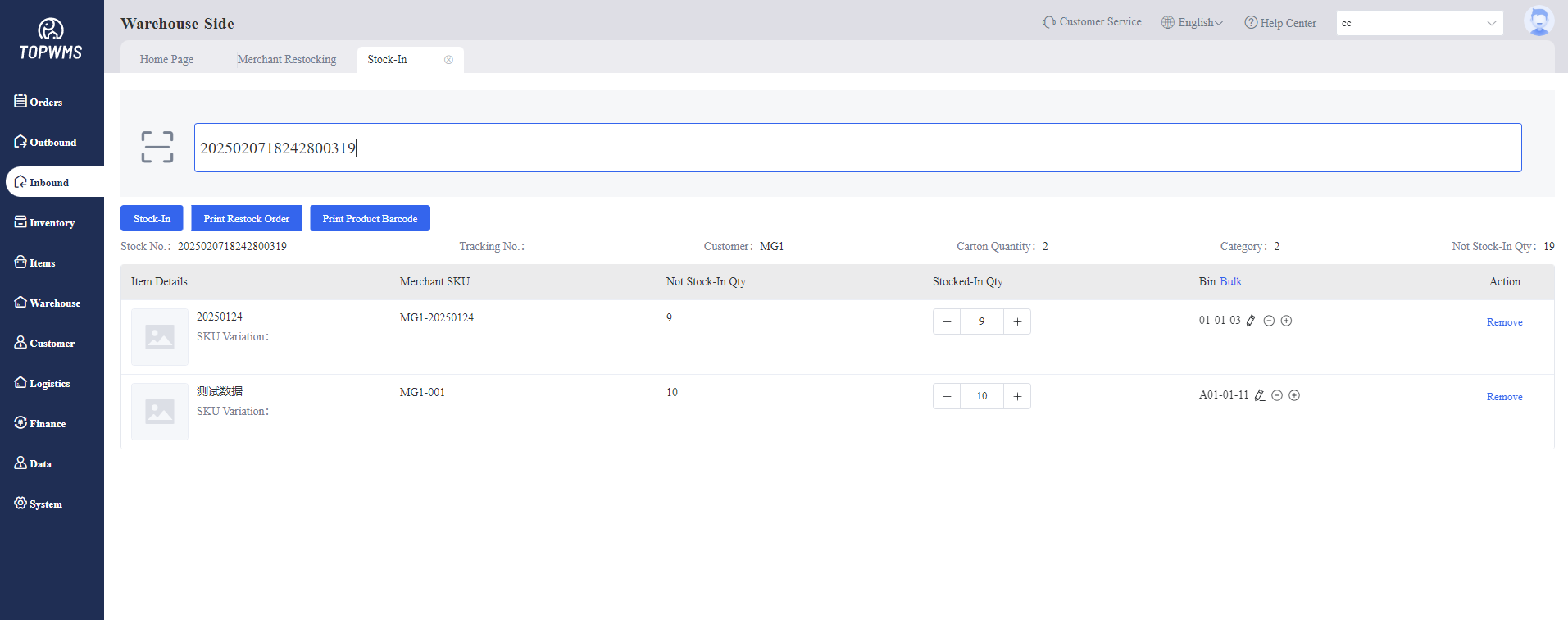
(9) After verifying the quality and quantity of items, enter the stock-in quantity, and click [Stock-In].
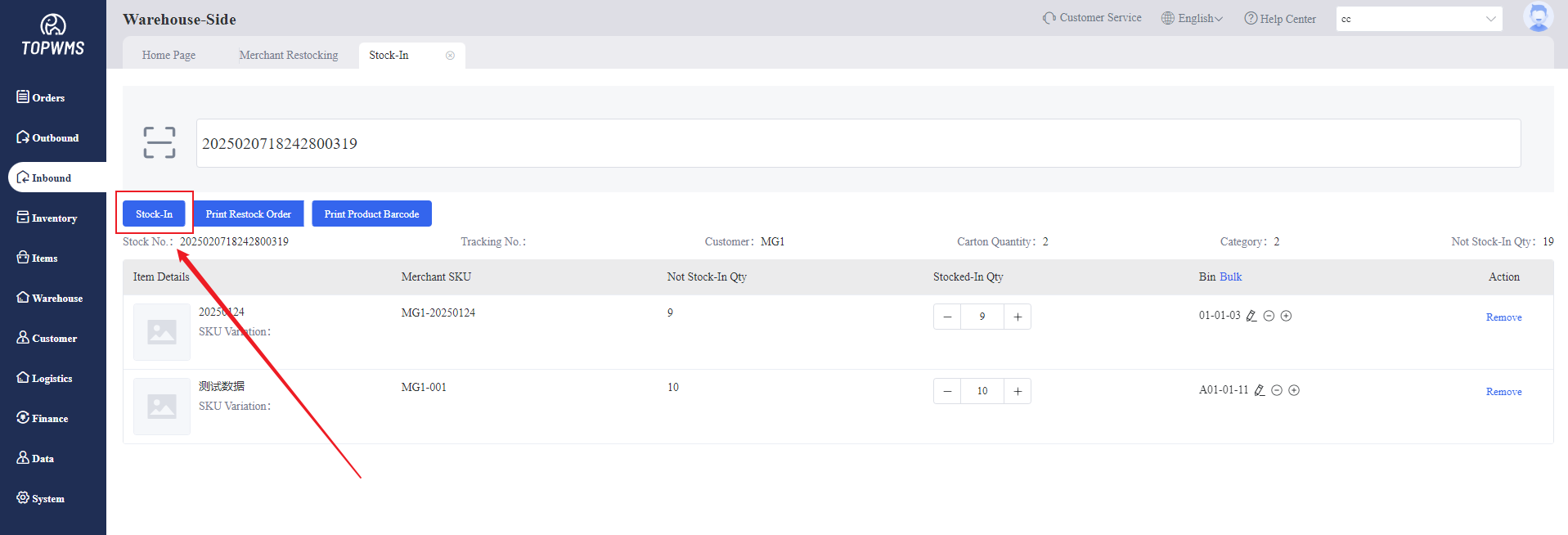
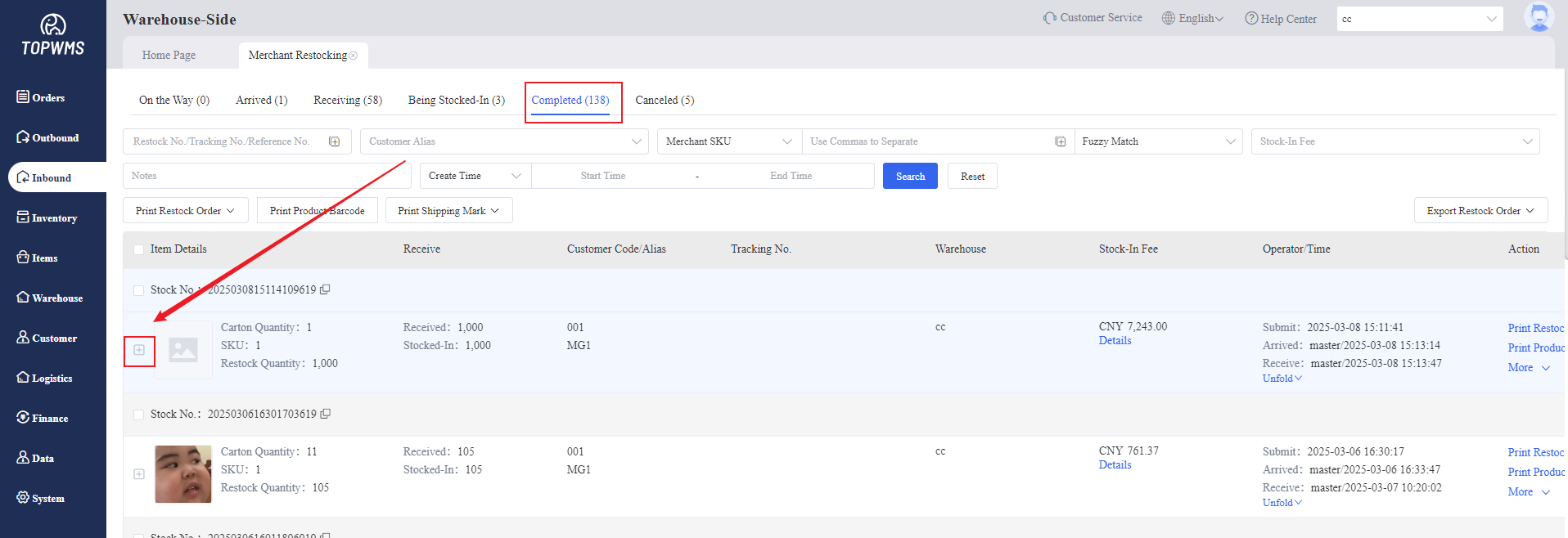
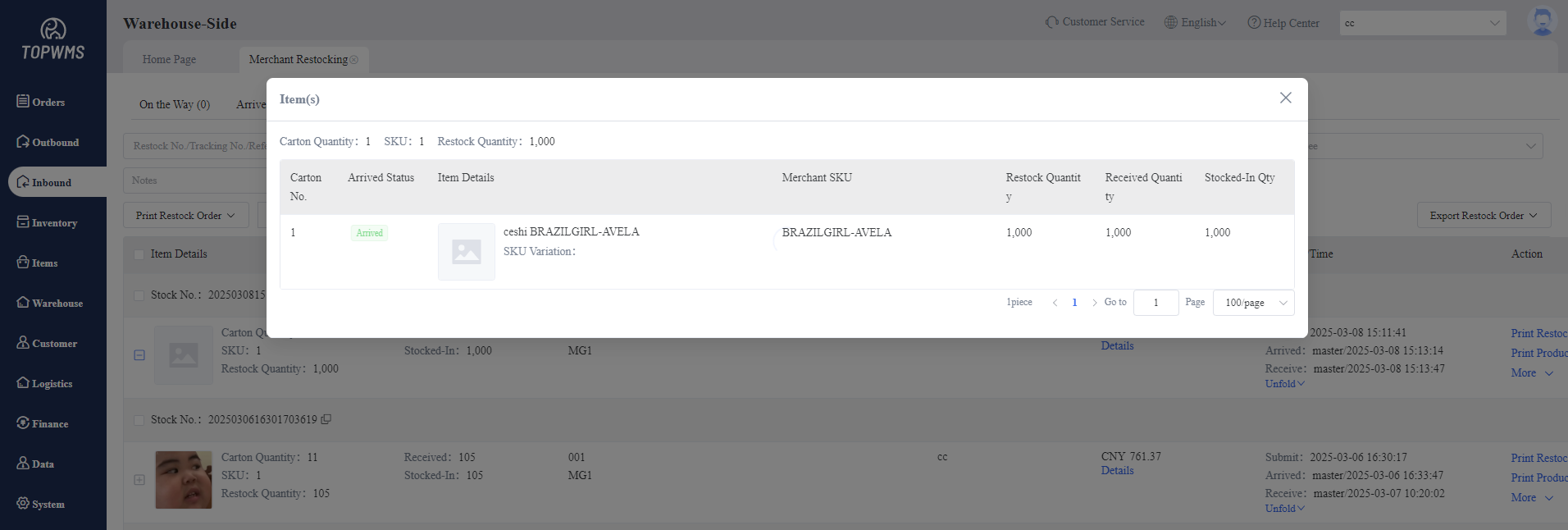
(10) Then you can check the received and stocked-in quantity by clicking the '+' icon on [Merchant Restocking] page - 'Completed' status.
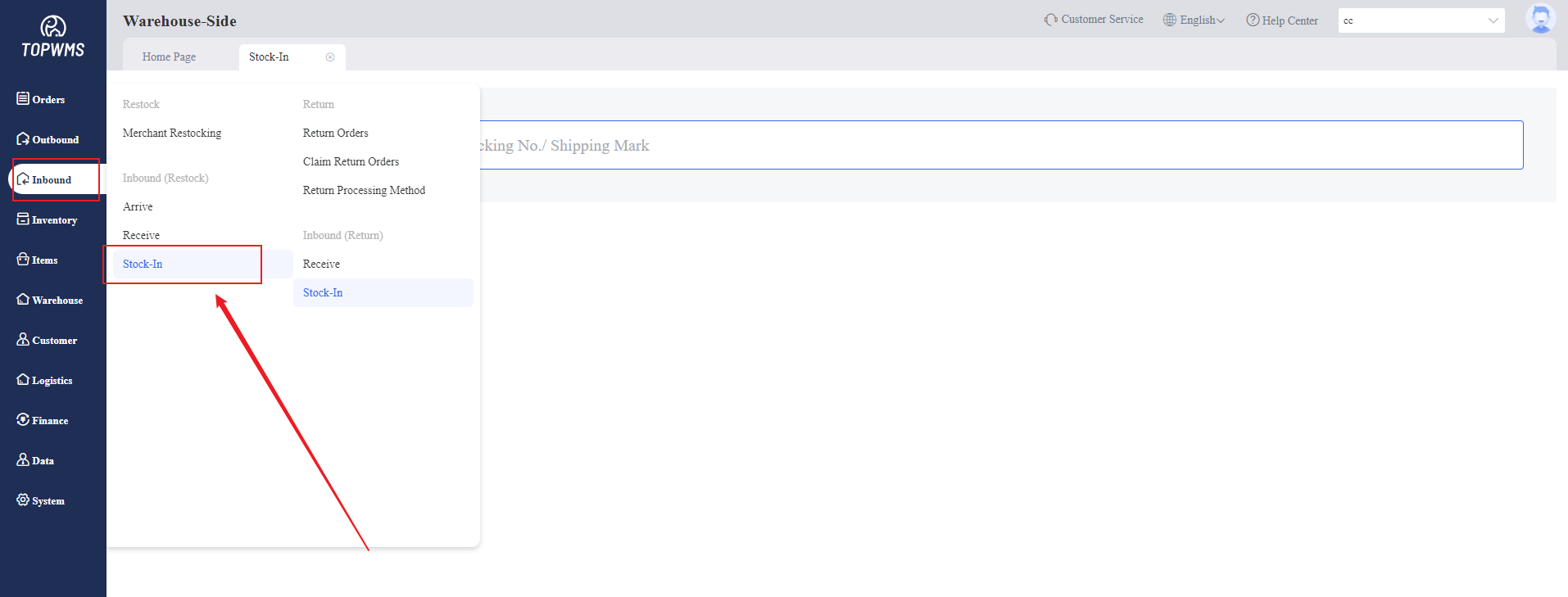
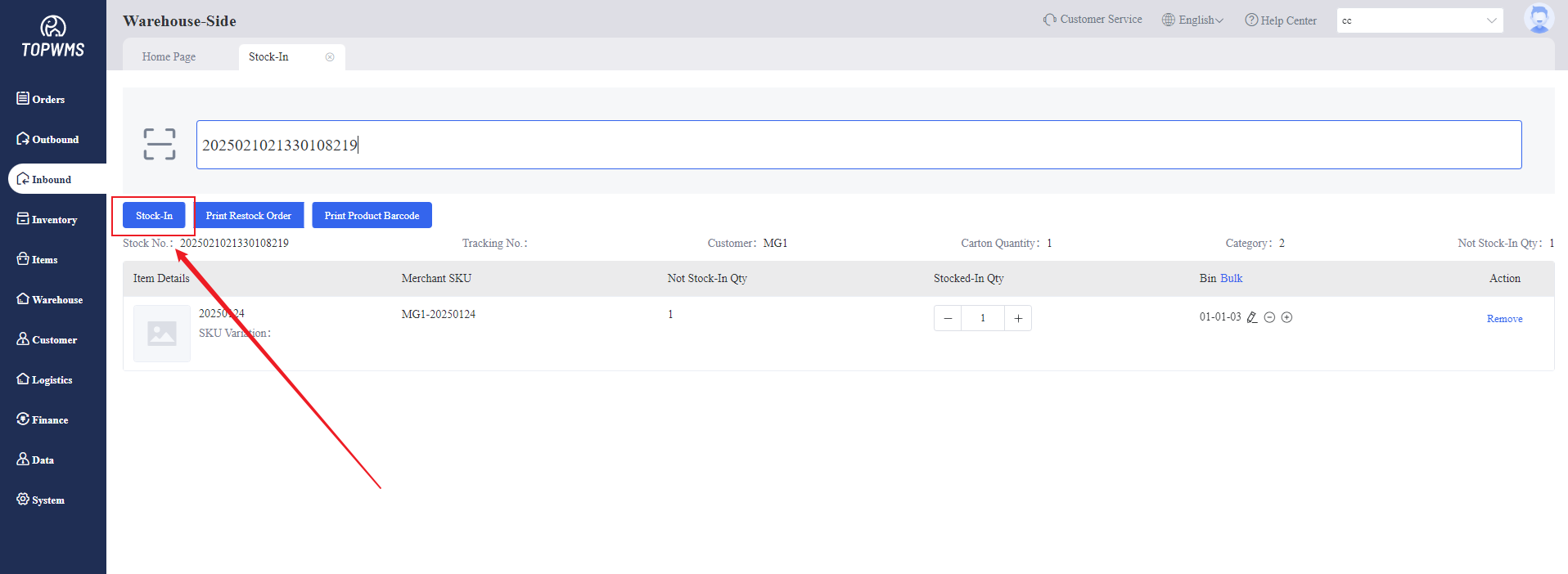
(11) Another way to put items into storage:
Click [Inbound] > [Stock-In] > Scan the Restock No./Return No./Tracking No. > Click [Stock-In]