I. Introduction
1. After receiving items and stocking items in the warehouse, the current stock quantity, weight, size, storage age and other information of items can be searched on [Inventory List] page.
2. Stock can be modified and all change of stock are recorded for warehouse checking.
II. Tutorial Details
1. Inventory Search
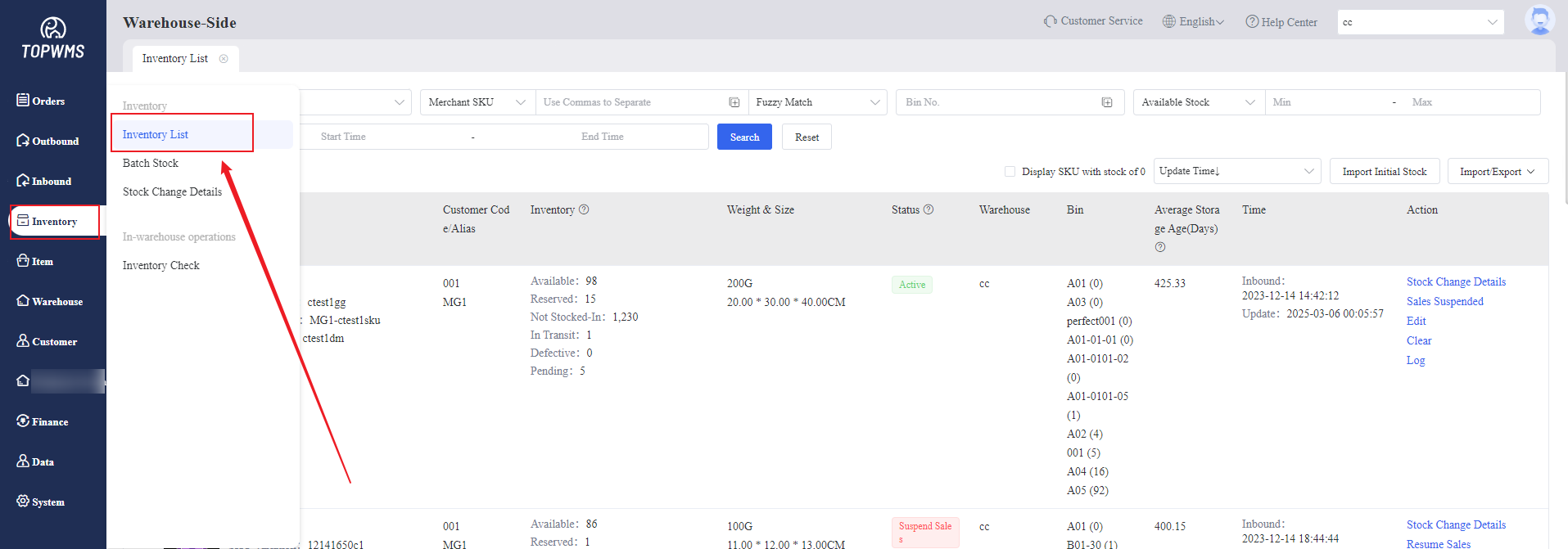
(1) Click [Inventory] > [Inventory List]
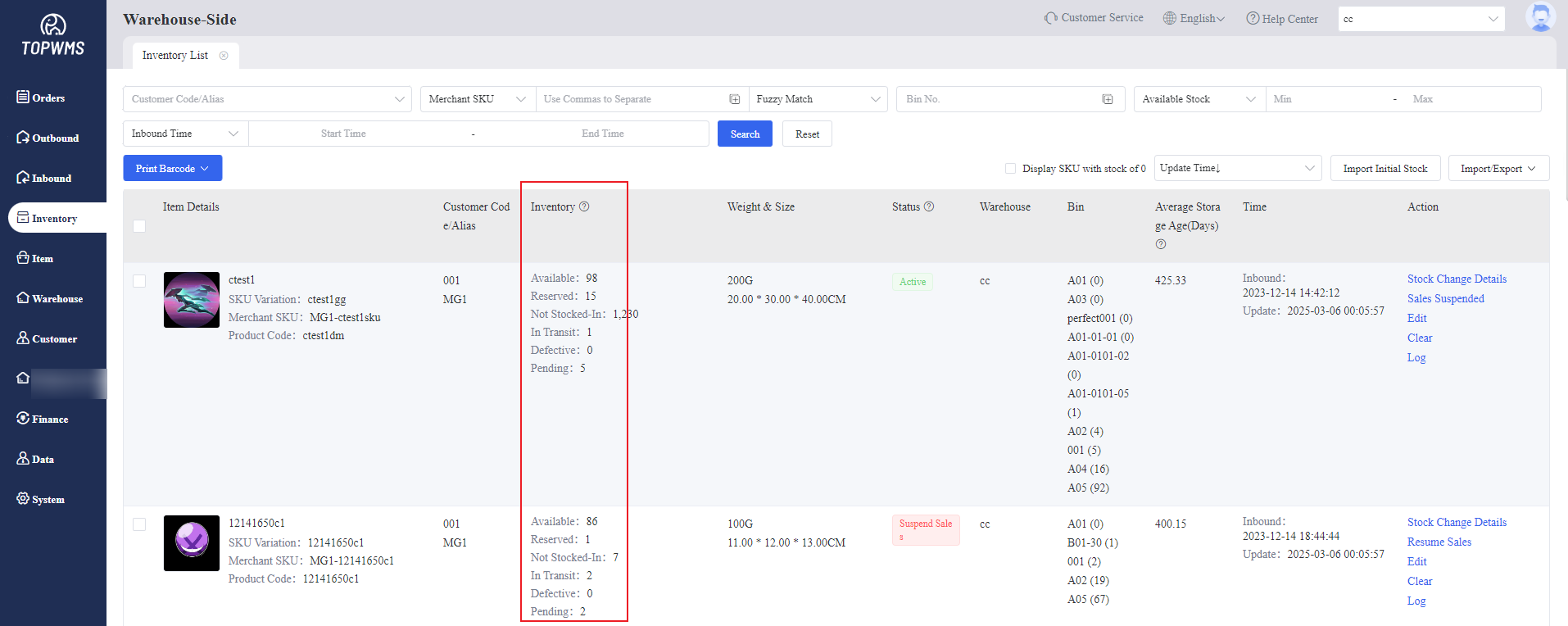
(2) The stock quantity, weight, size, warehouse, bin location, storage age, etc. of each item can be viewed on this page.
① Quality Stock: Available Stock + Reserved Stock
② Available Stock: The number of items that can still be deducted.
③ Reserved Stock: The number of items that have been ordered by buyers and are waiting to be shipped from the warehouse.
④ Not Stocked-In Stock: The number of items in the restocked order that received by warehouse but has not yet been stocked in.
⑤ In Transit: The number of items in the restock order submitted by merchant but has not yet arrived at the warehouse.
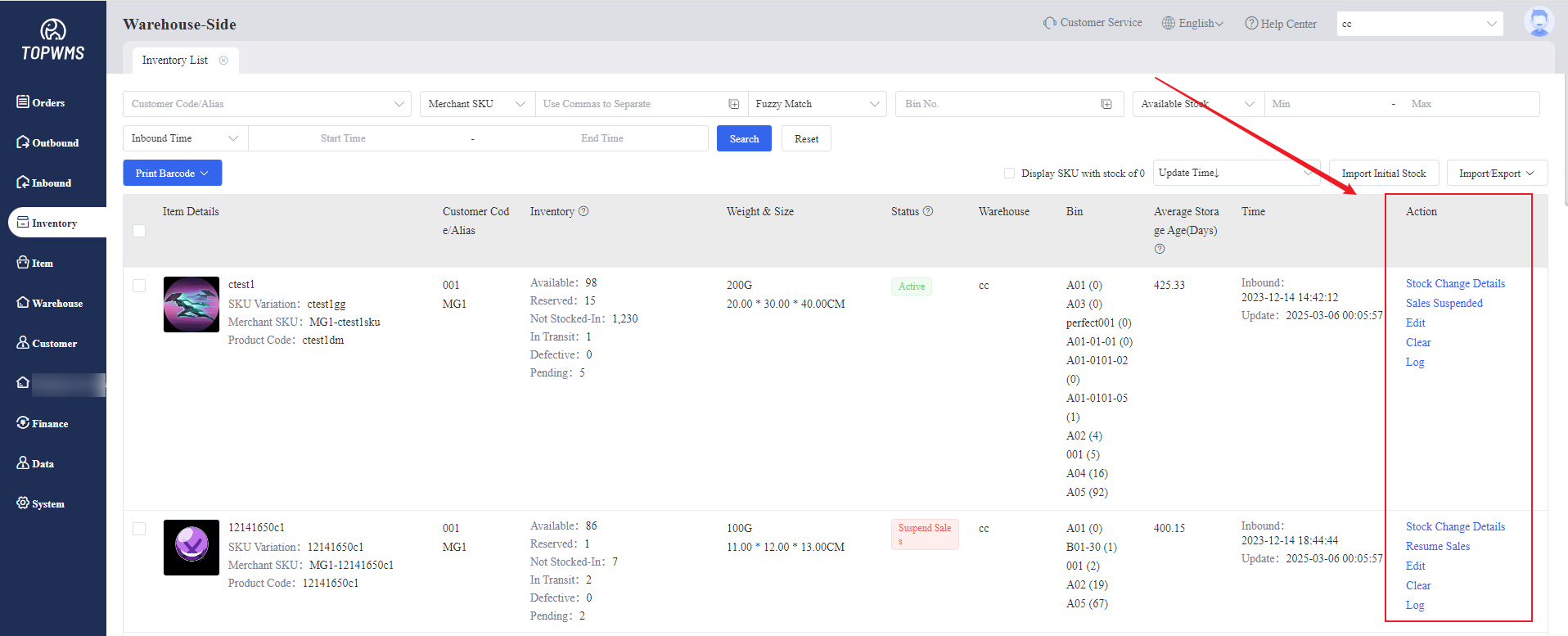
(2) The following operations can be performed on this page.
① Stock Change Details: Every time a item is stocked out or in, it will be automatically recorded, and you can see the specific stock-in/out time and the stock changes here.
② Sales Suspended: The merchant cannot submit the order containing this product to the warehouse.
③ Edit: Edit the weight and size of items
④ Clear: After the item is cleared, the stock of it will be cleared to 0. If you select [Clear and Delete], the item will be removed from the warehouse.
⑤ Log: All specific operations will be recorded in the log.
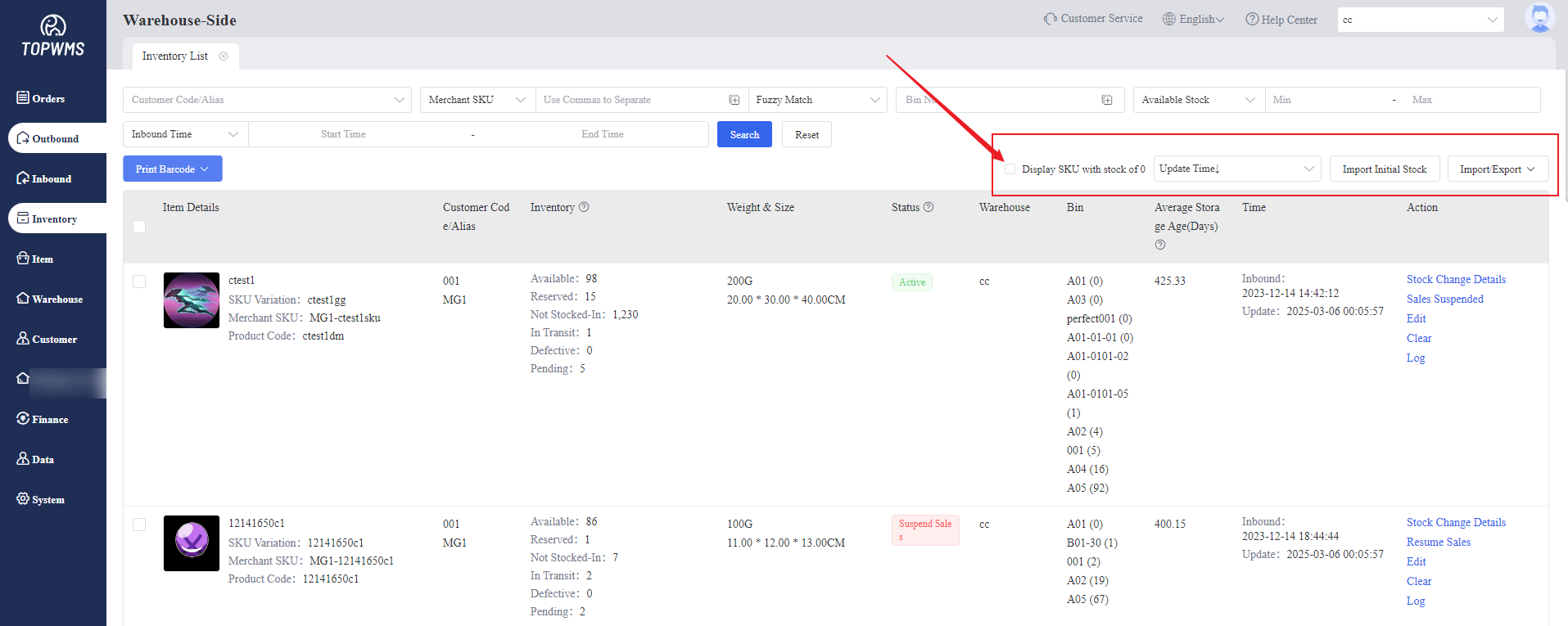
(3) Supports setting whether to display SKUs with stock of 0 (in the previous step, when the item is cleared and the stock of it is 0, if the [Display SKU with Stock of 0] is not enabled here, the item with stock of 0 cannot be viewed);
Setting item viewing priority,importing initial stock and importing and exporting stock details etc. are supported on this page.
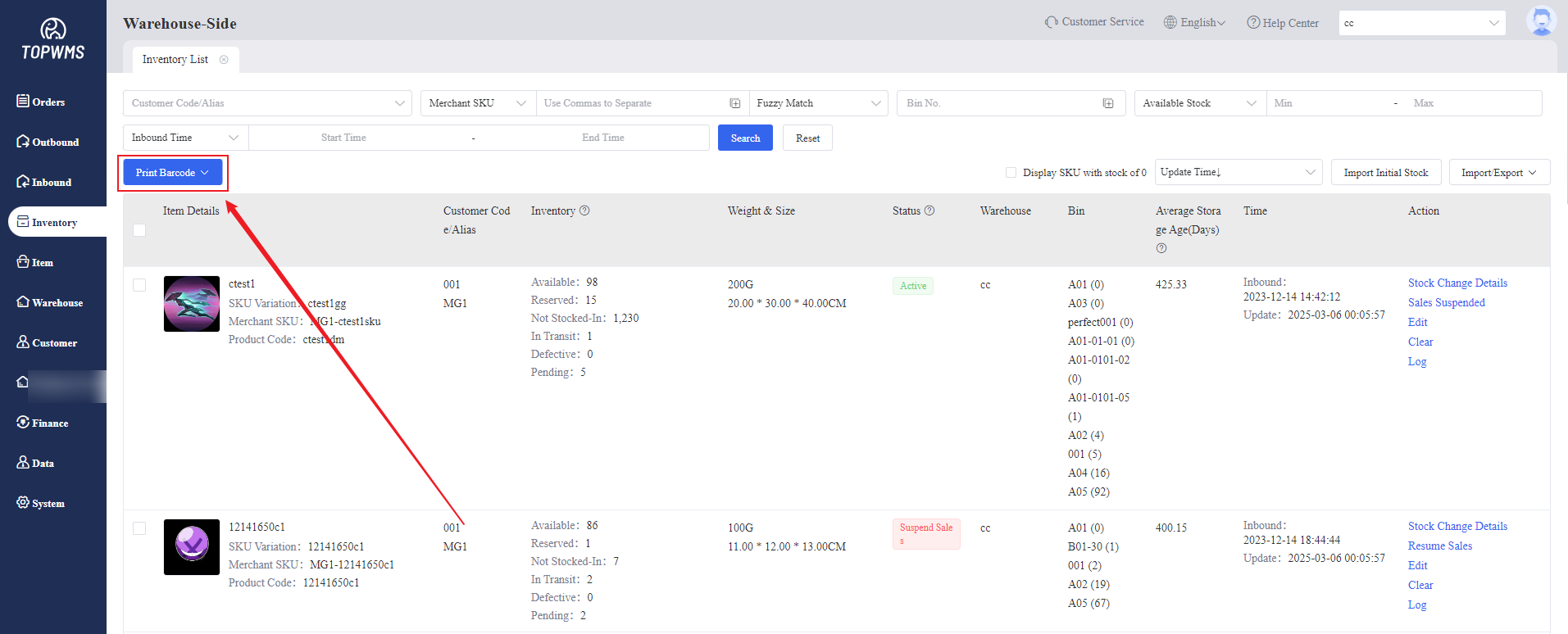
(4) After the item has been stocked-in but product barcode has not been printed, you can also print it on this page.
2. Batch Stock - Stock Adjustment and Bin Location Change
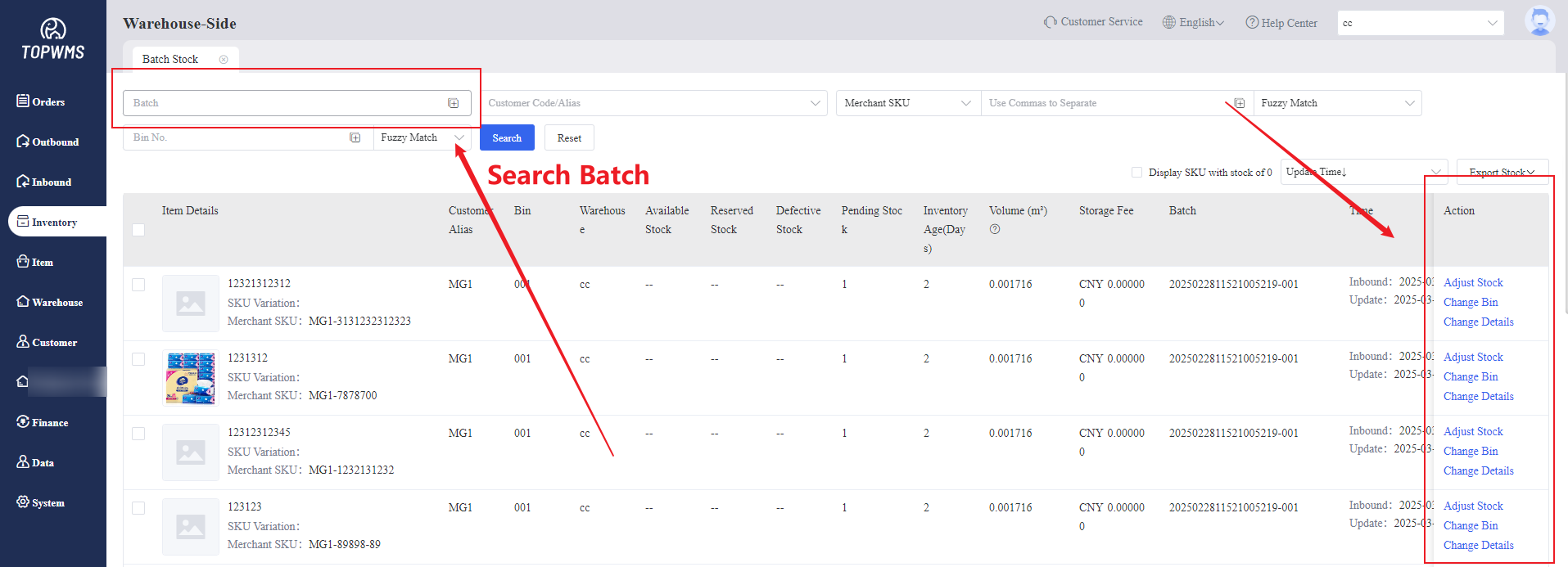
(1) Click [Inventory] > [Batch Stock]
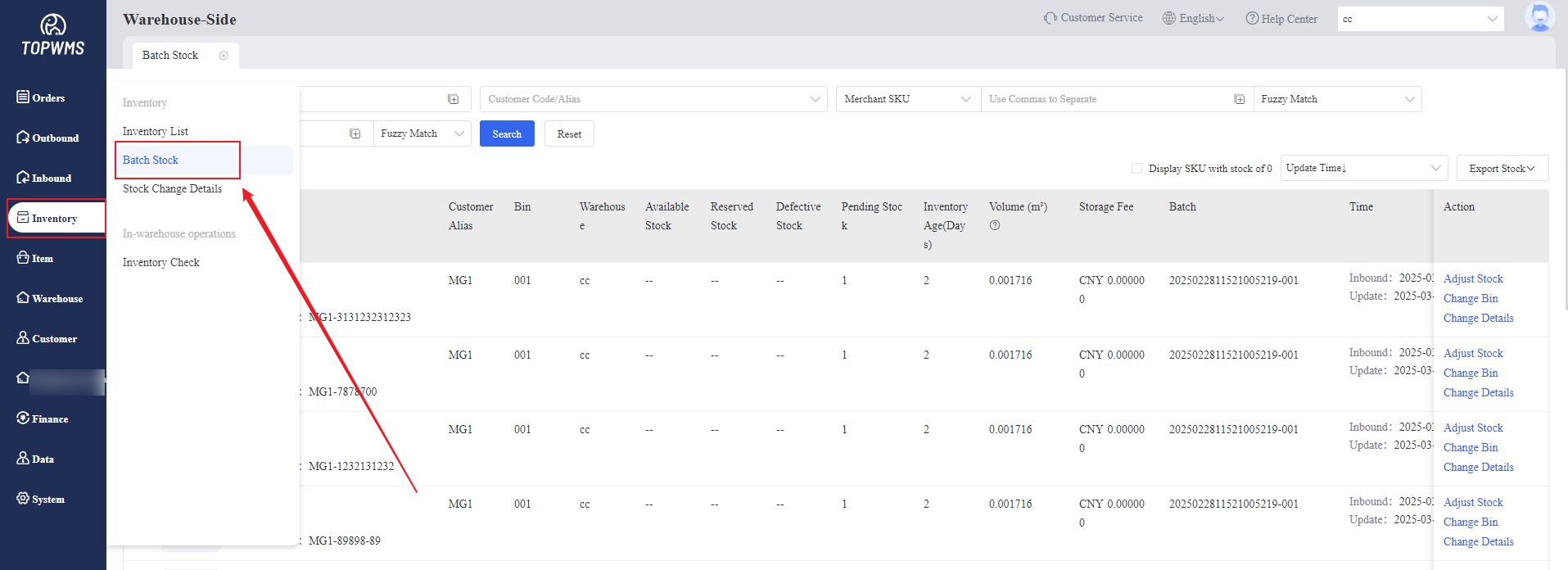
Searching stock of items by batch, adjusting stock and changing the bin location of items are supported on this page.