After creating warehouses and setting zones, then you can set the bin location if you need.
1. First, Setting Bin Specifications
Click Warehouse > Click Bin Specification > Click Add
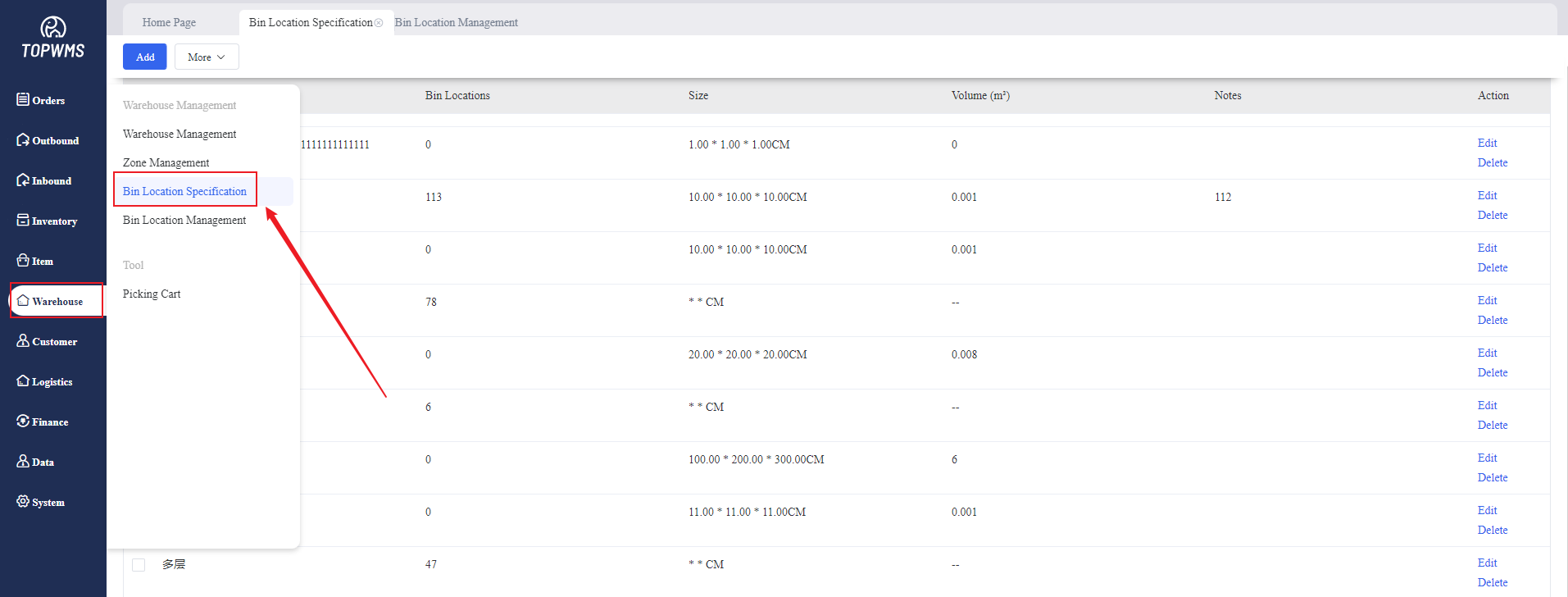
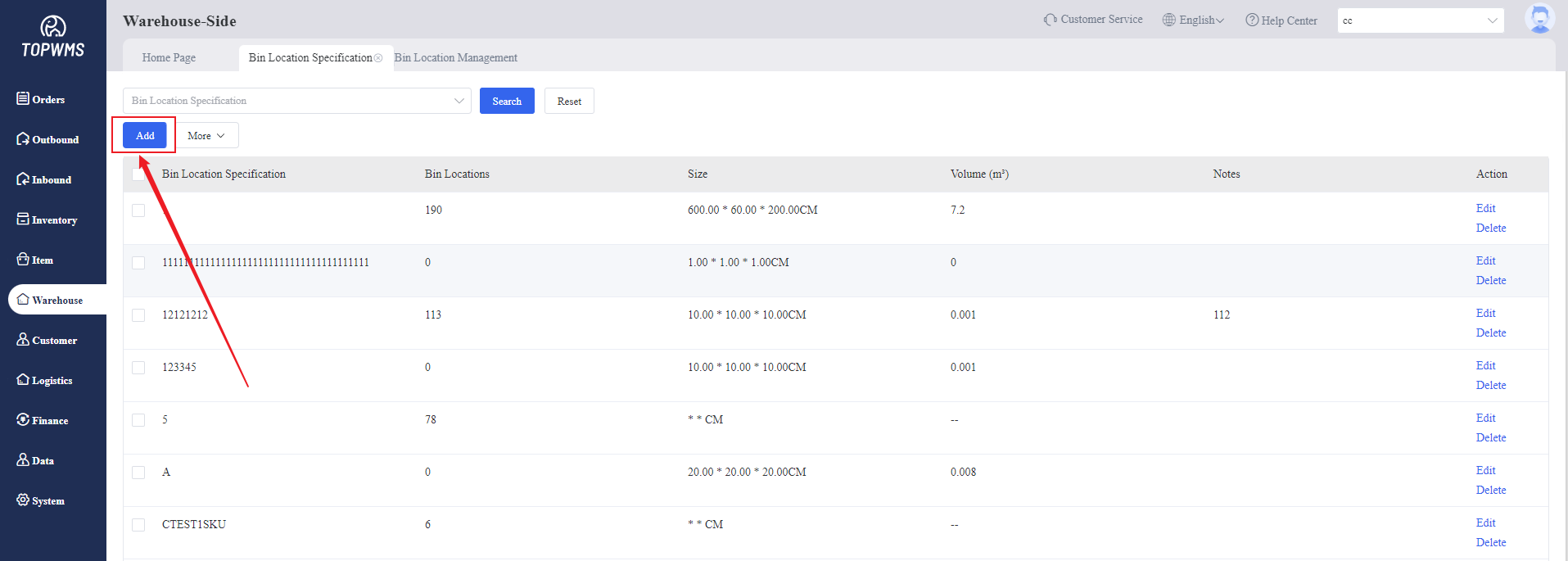
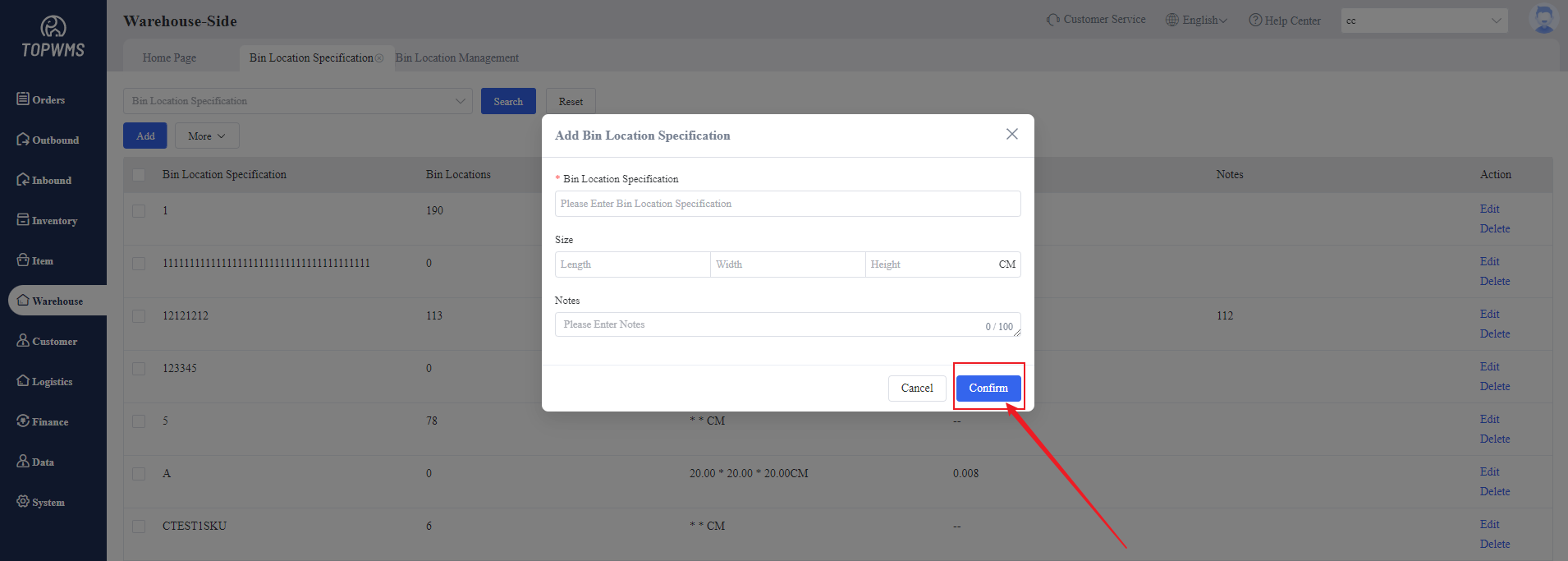
You can set the different sizes of bins and then click Confirm to create different specifications.
2. Second, Setting Bins
Click Warehouse > Click Bin Location Management
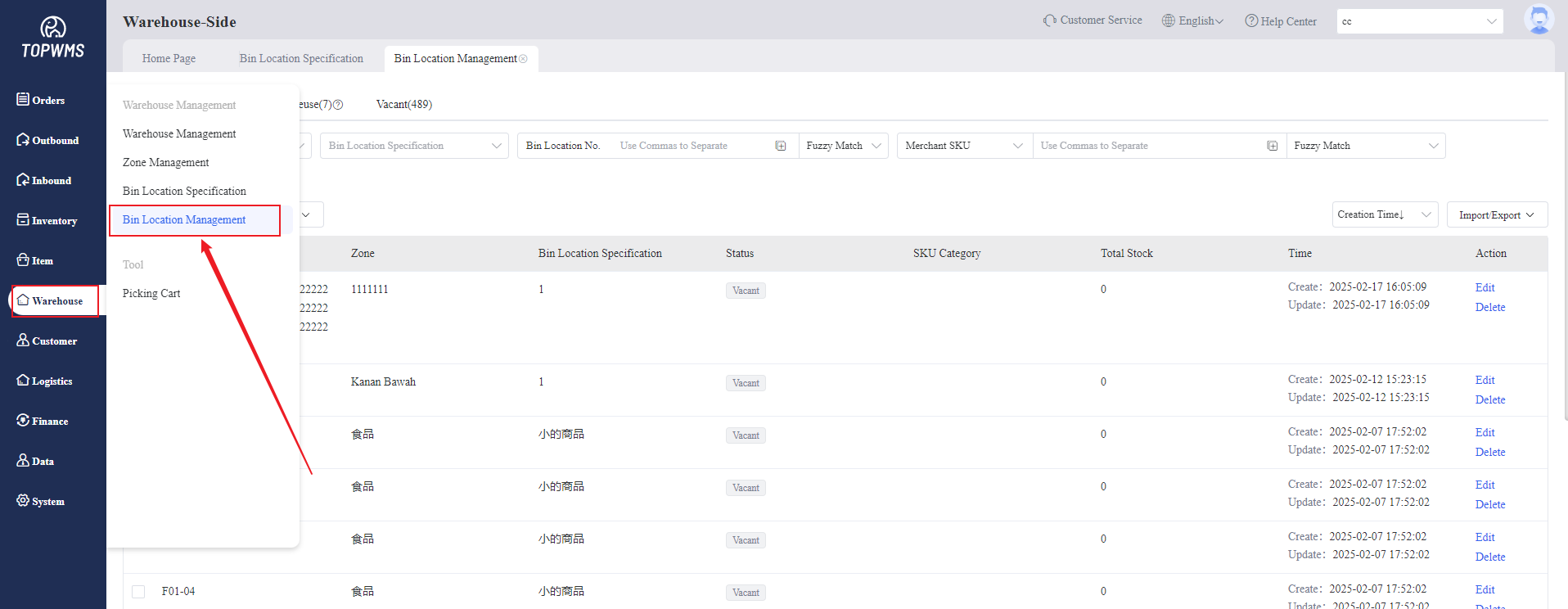
After verification, each item will be placed in the corresponding bin according to the corresponding zones and bin specifications.
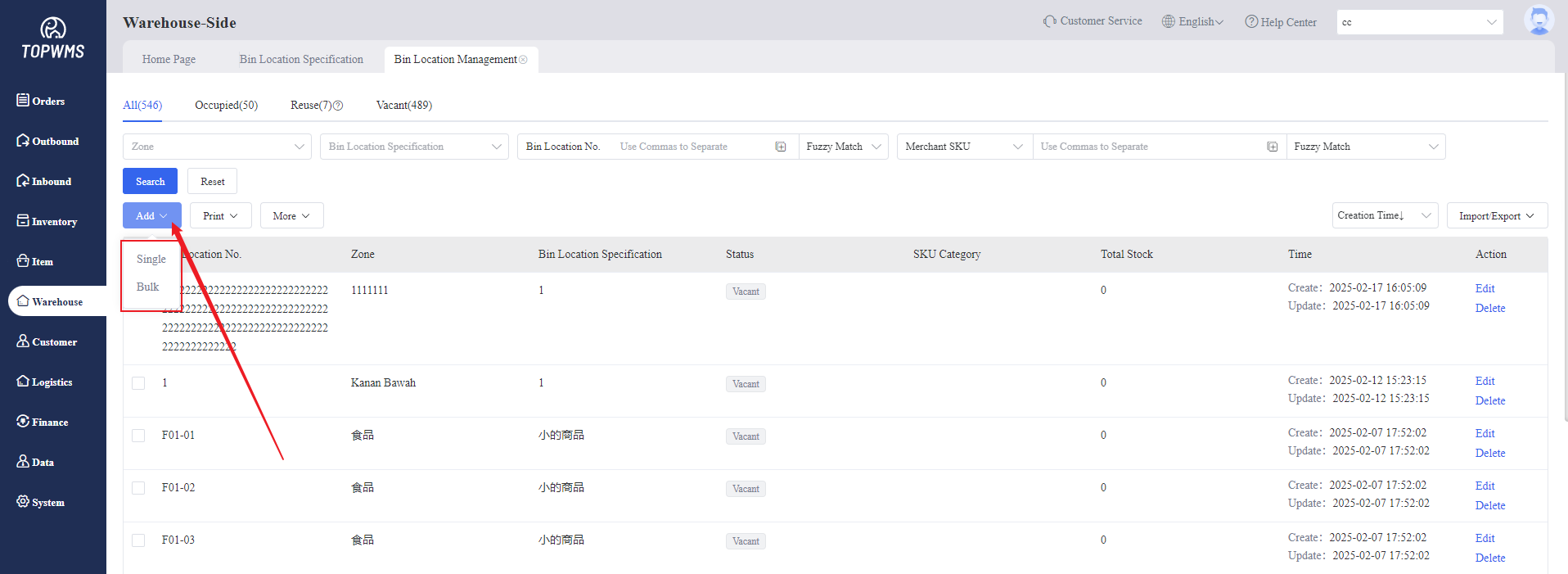
Click Add, Single and bulk addition are supported.
3. Adding Bins
(1) Single Addition
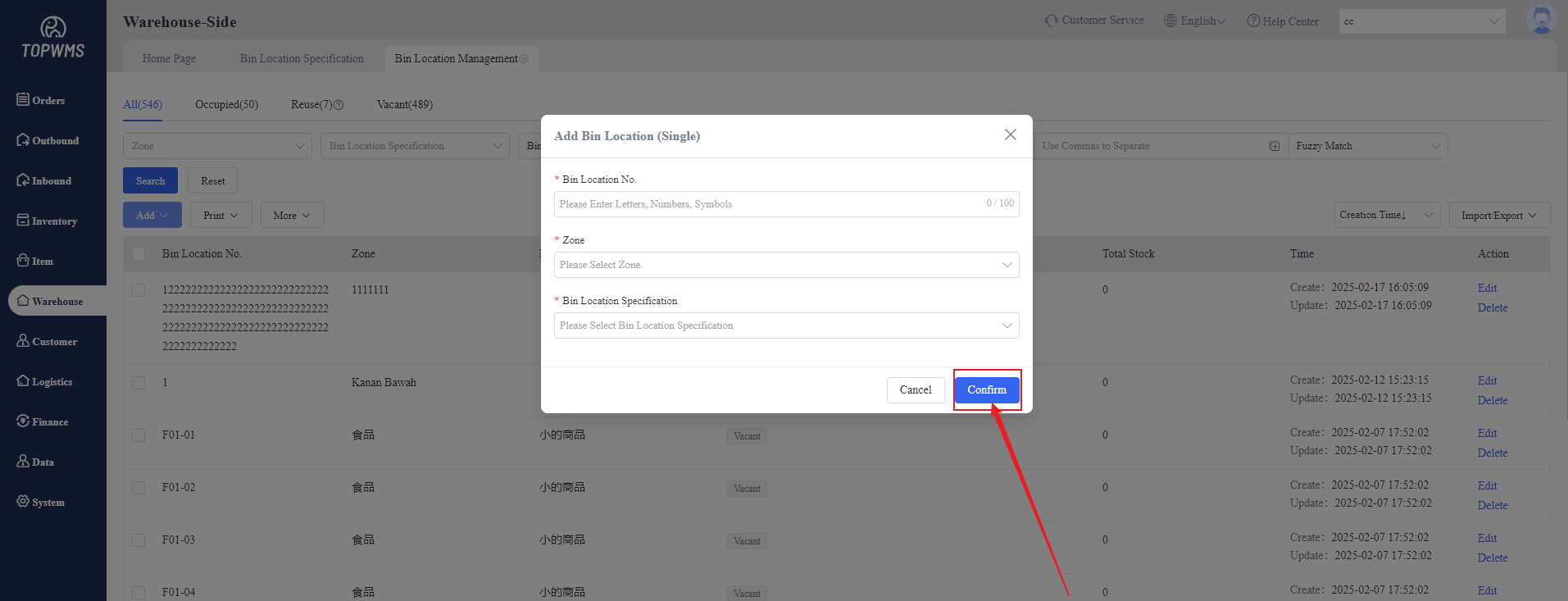
For a single addition, you need to directly customize the bin number, select the zone and bin specification, and click Confirm to generate the bin.
(2) Bulk Addition
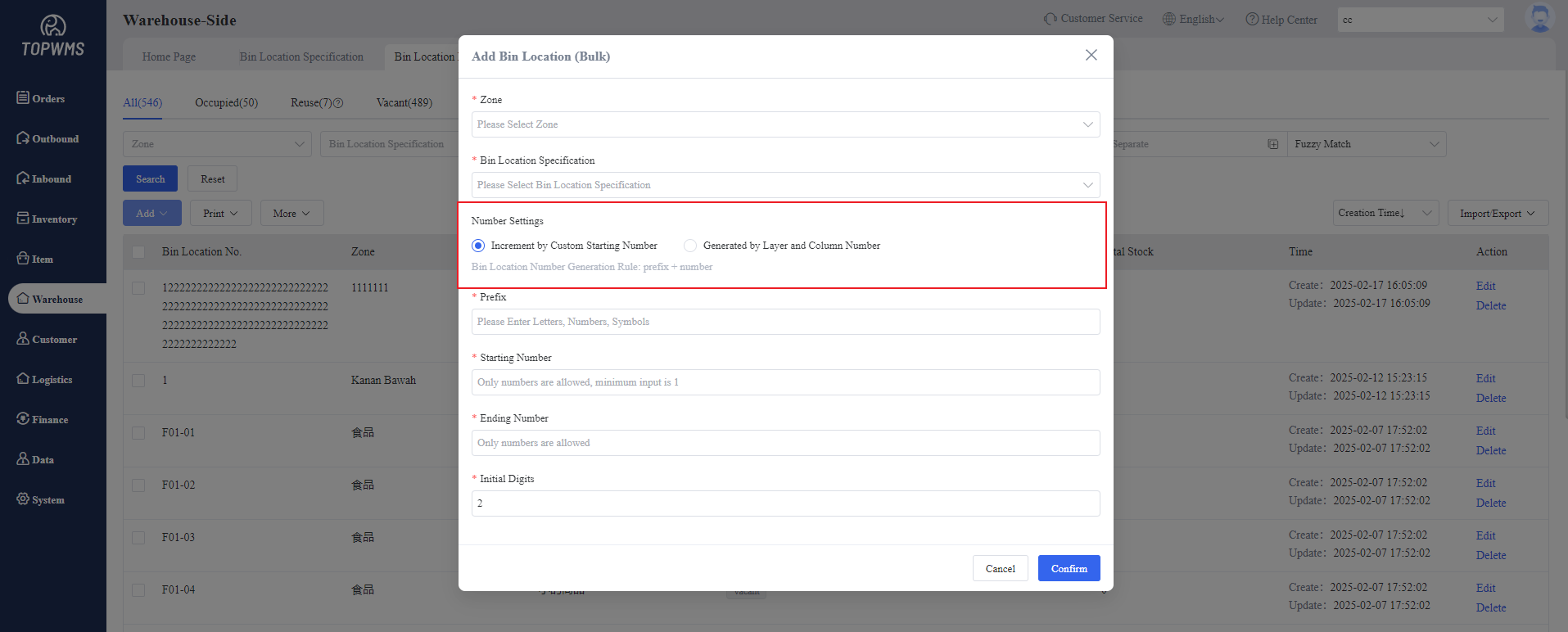
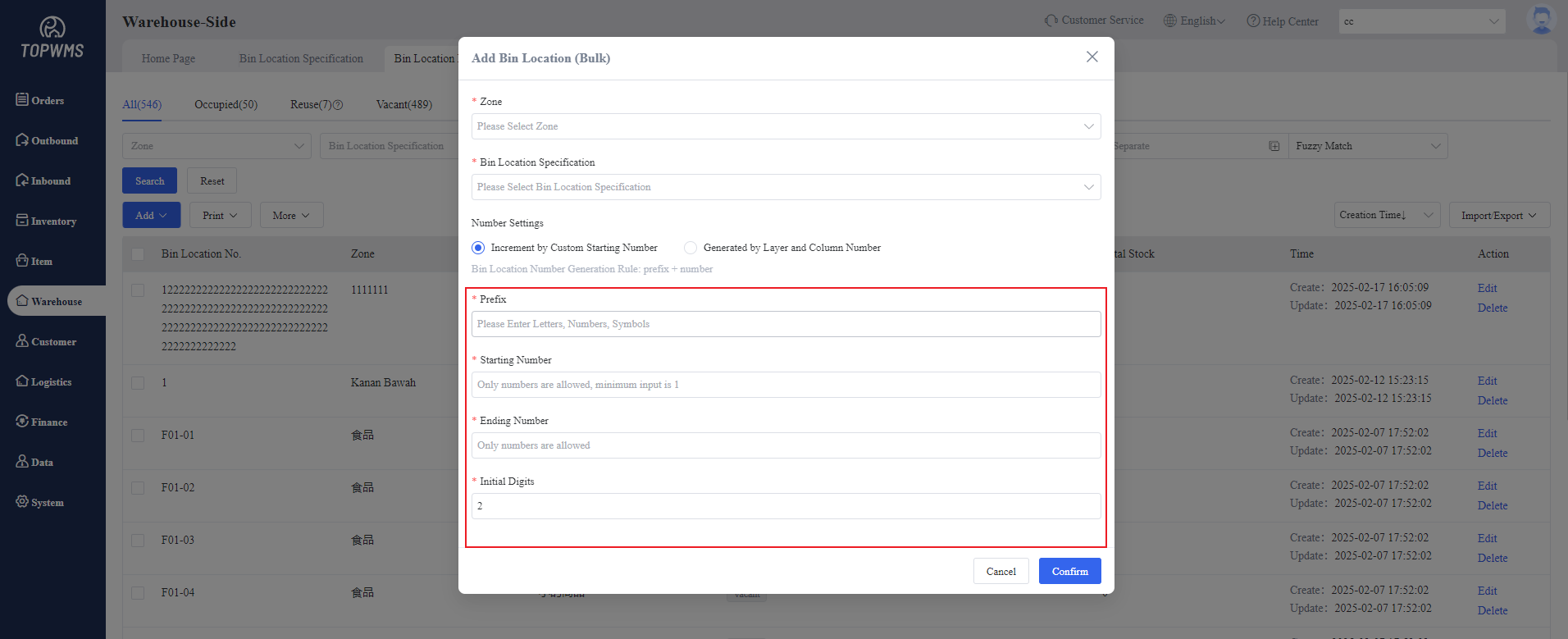
After selecting the zone and the specification, you need to set the numbering rule. The system will automatically generate the bin names according to the set rule. After setting the corresponding rules, Click Confirm
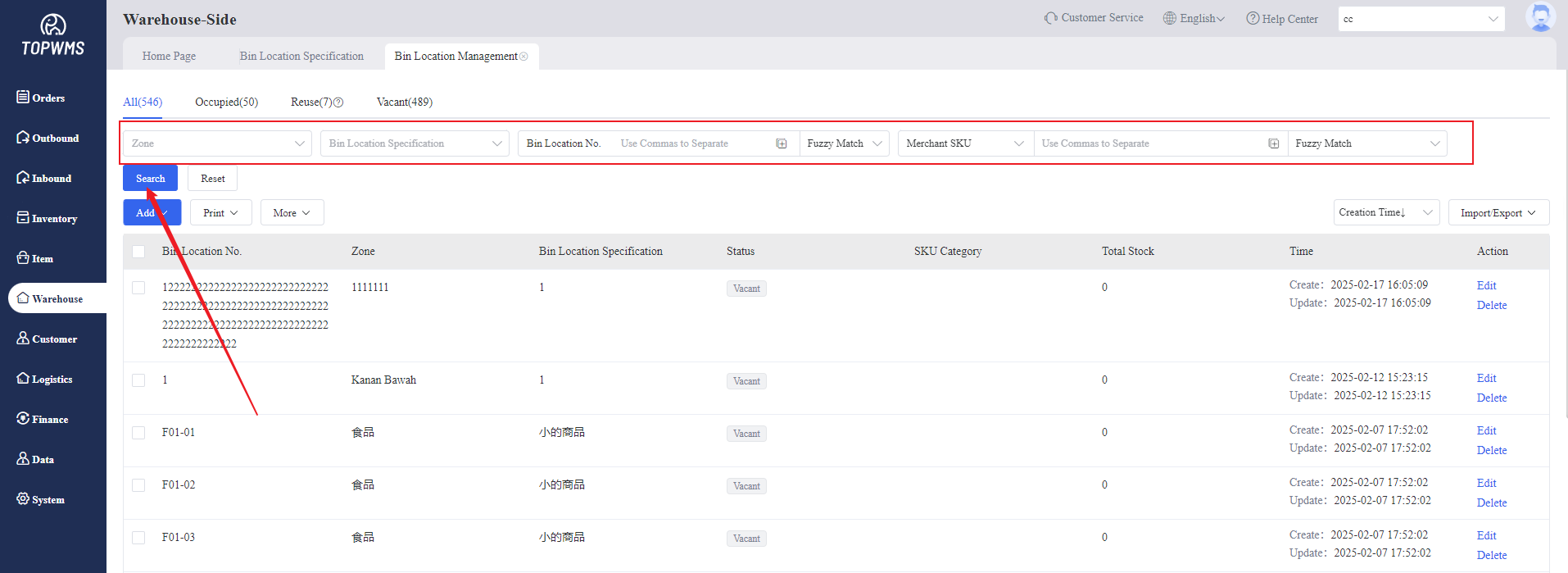
4. After the new bin is created, it will be displayed as "Vacant". After items are placed in it, it will be displayed as "Occupied". If the number of items in the "Occupied" bin becomes 0, the status of the bin will be displayed as "Reuse". This bin can be used to place other items.
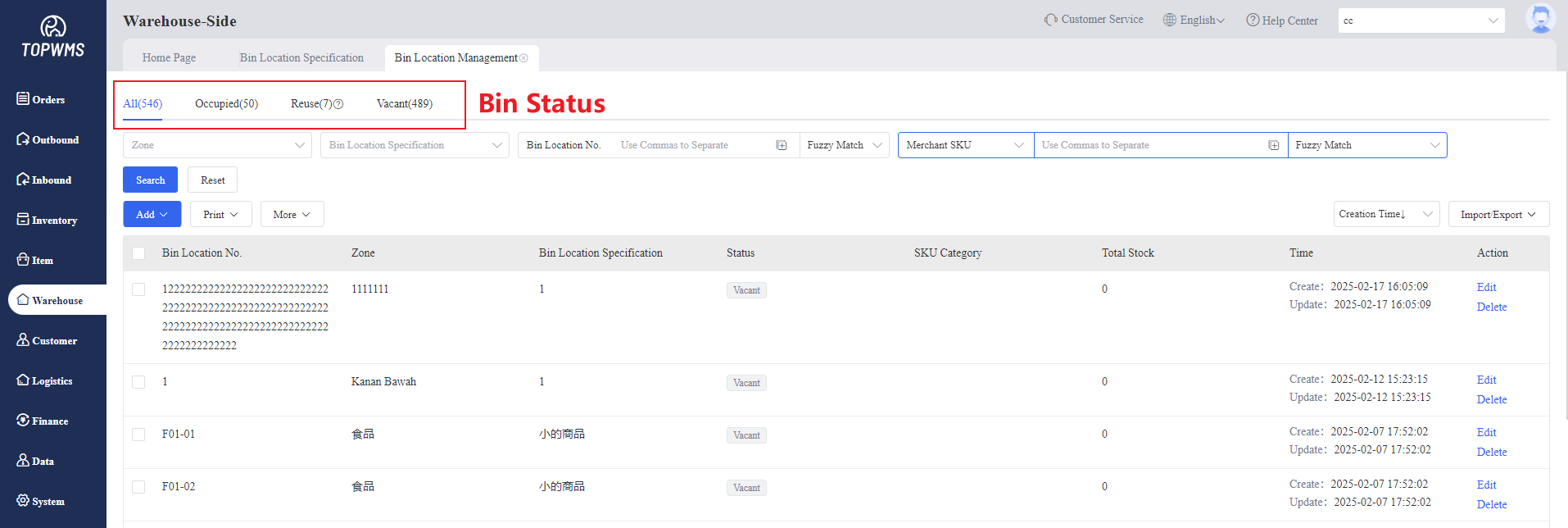
5. It also supports filtering bins by bin status or zone, specification, number, etc.
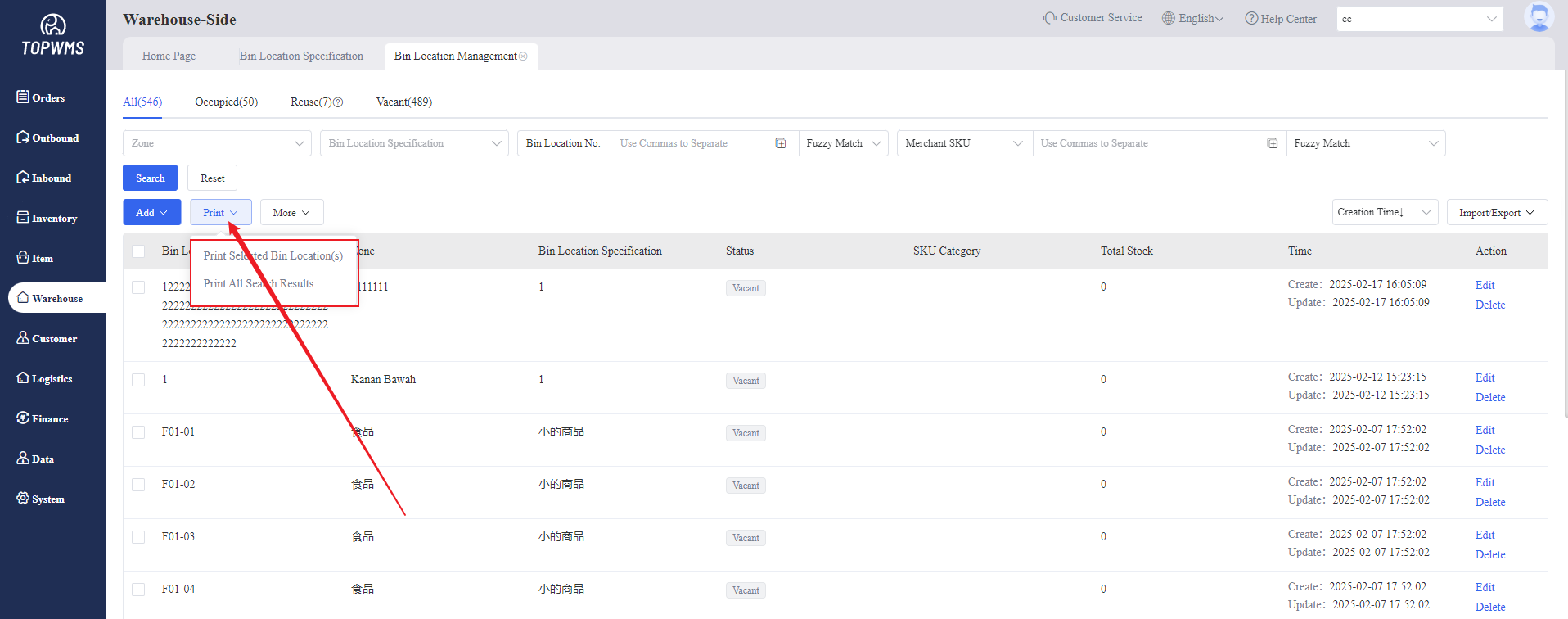
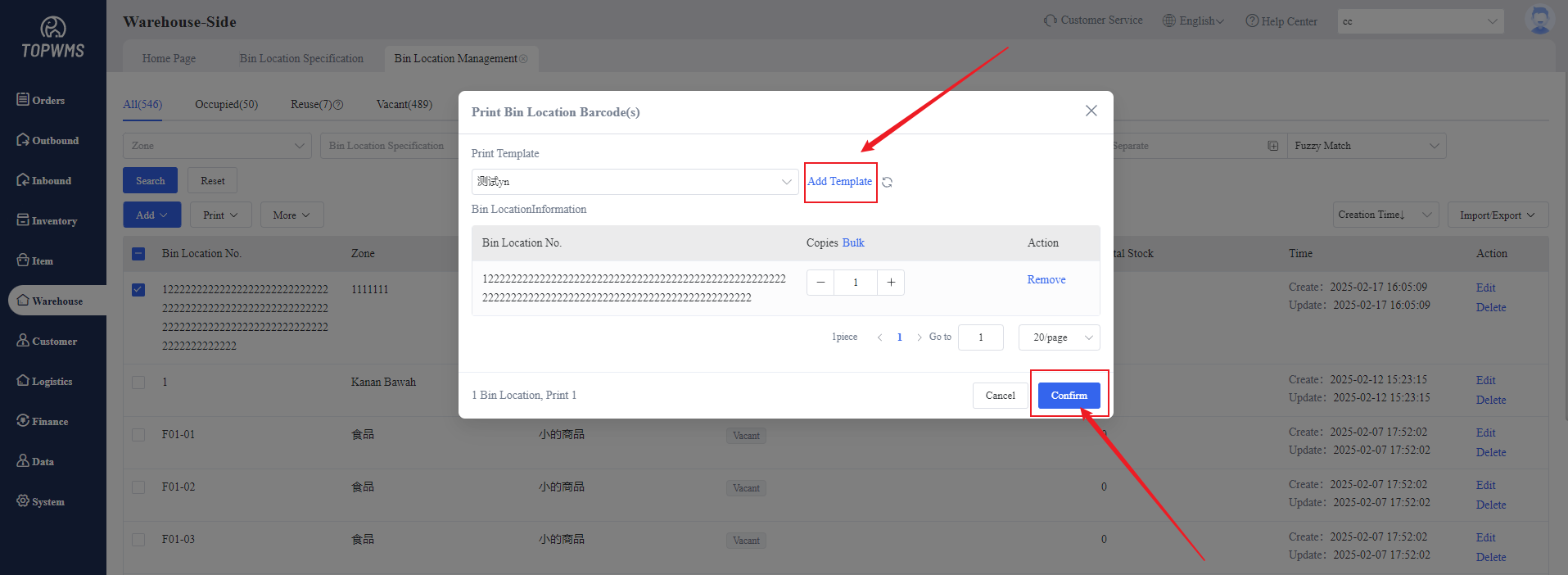
6. Printing bin barcodes is also supported in this page, you can set the barcode template in the pop-up window.