I. Introduction
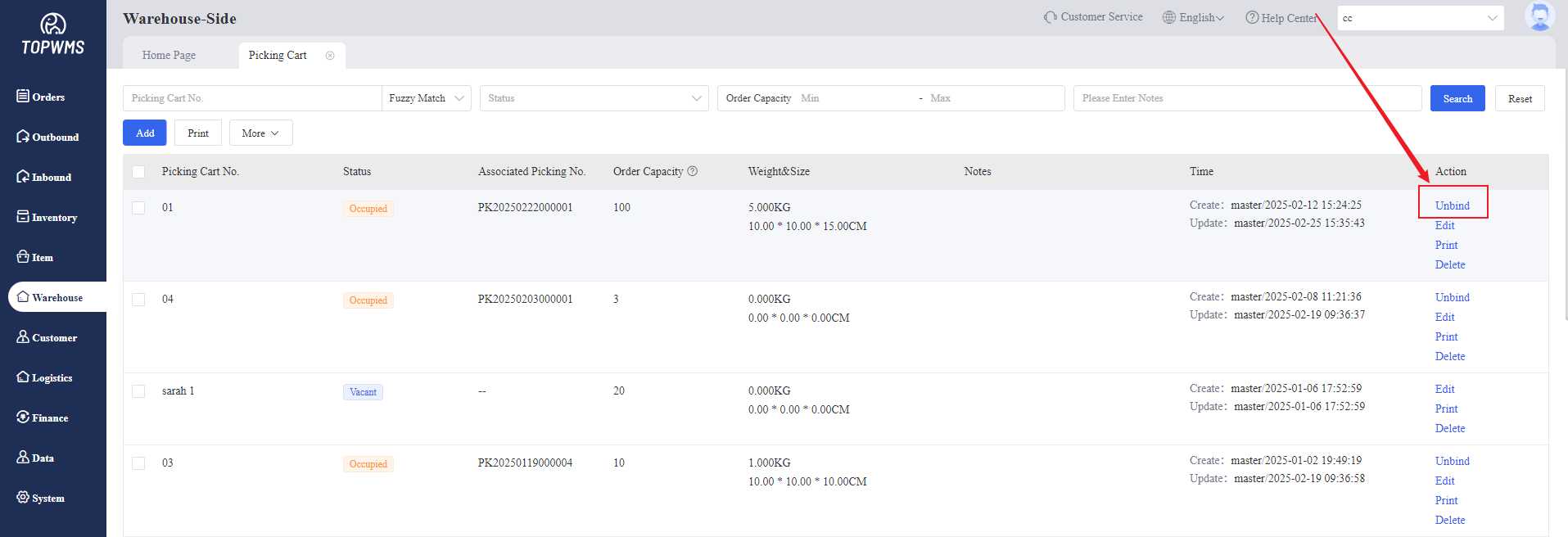
1. If you need a picking cart when picking, you can create a picking cart in the system first. Printing barcode can be supported.
2. The picking cart will automatically synchronize the usage status and associated picking no. for easy query and use.
II. Tutorial Details
1. Create Picking Cart
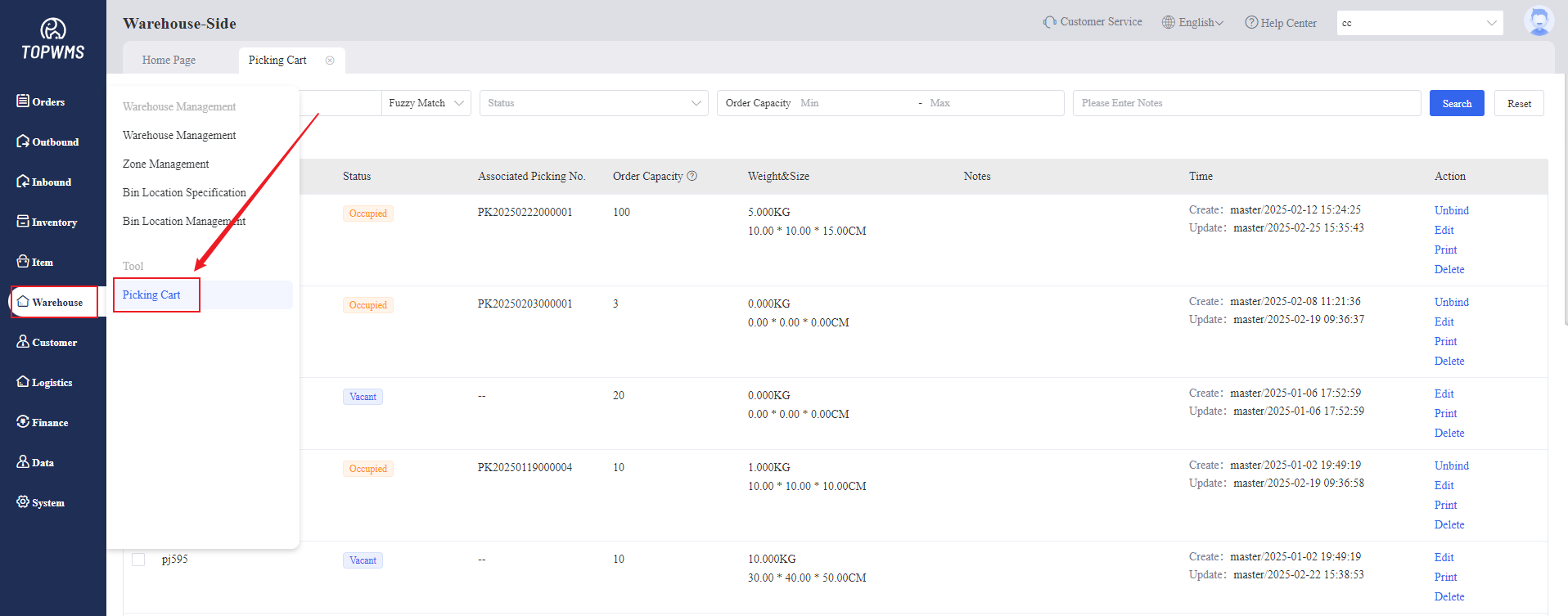
Enter Warehouse-Side - Click [Warehouse] - [Picking Cart]
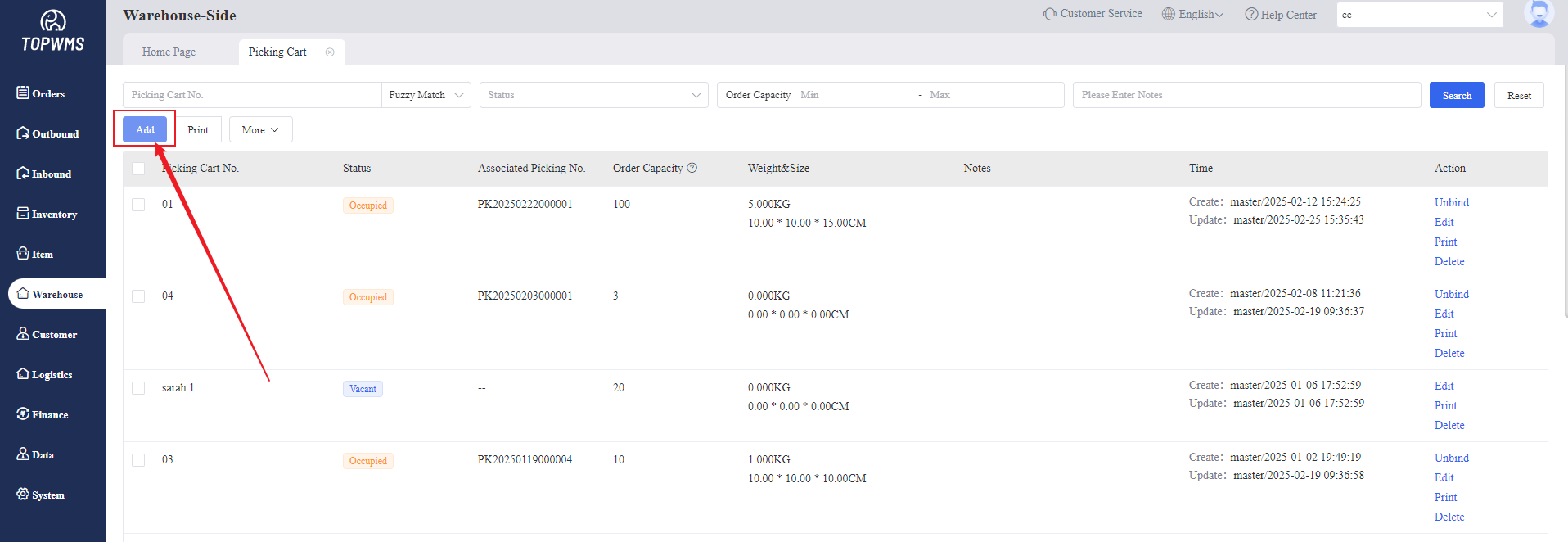
2. Click [Add] to Customize Picking Cart
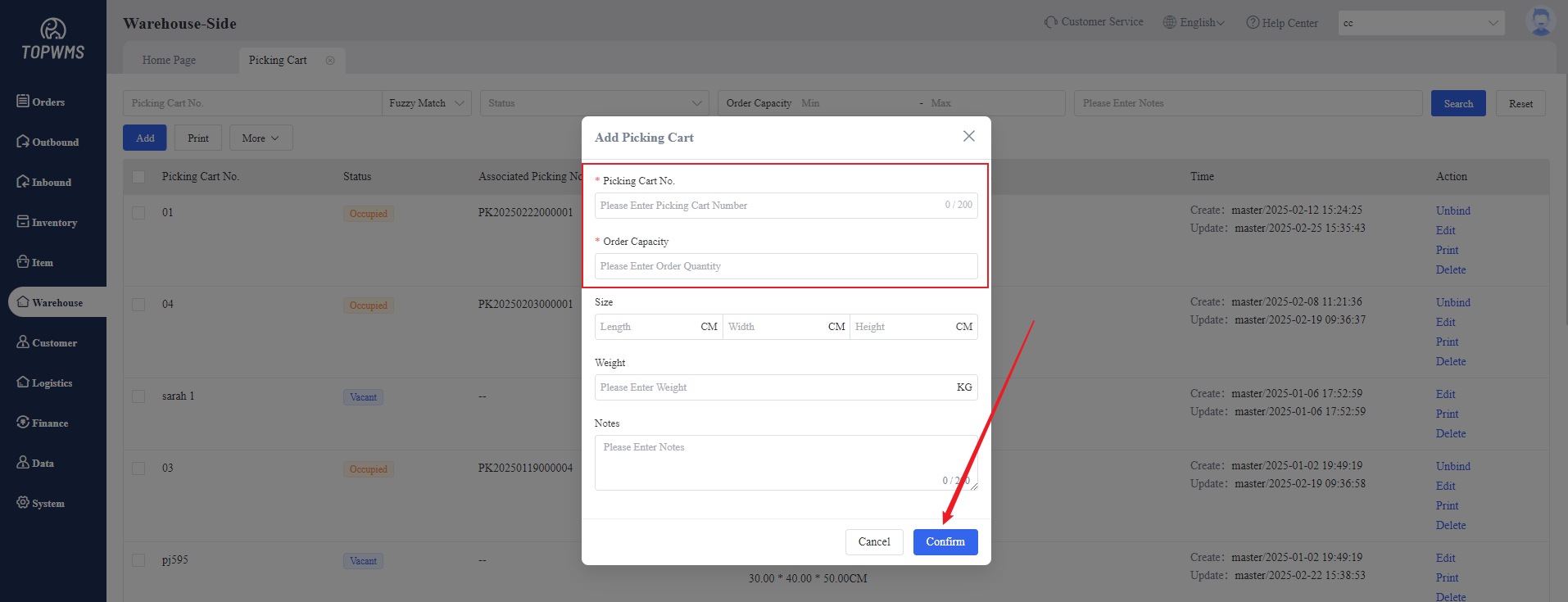
(1) Picking Cart No.: scan the cart no. when picking
(2) Order Capacity: the number of order for this picking
(3) Fields marked with red symbols are required, and other fields can be filled in as required.
After filling in, click [Confirm] to create this picking cart.
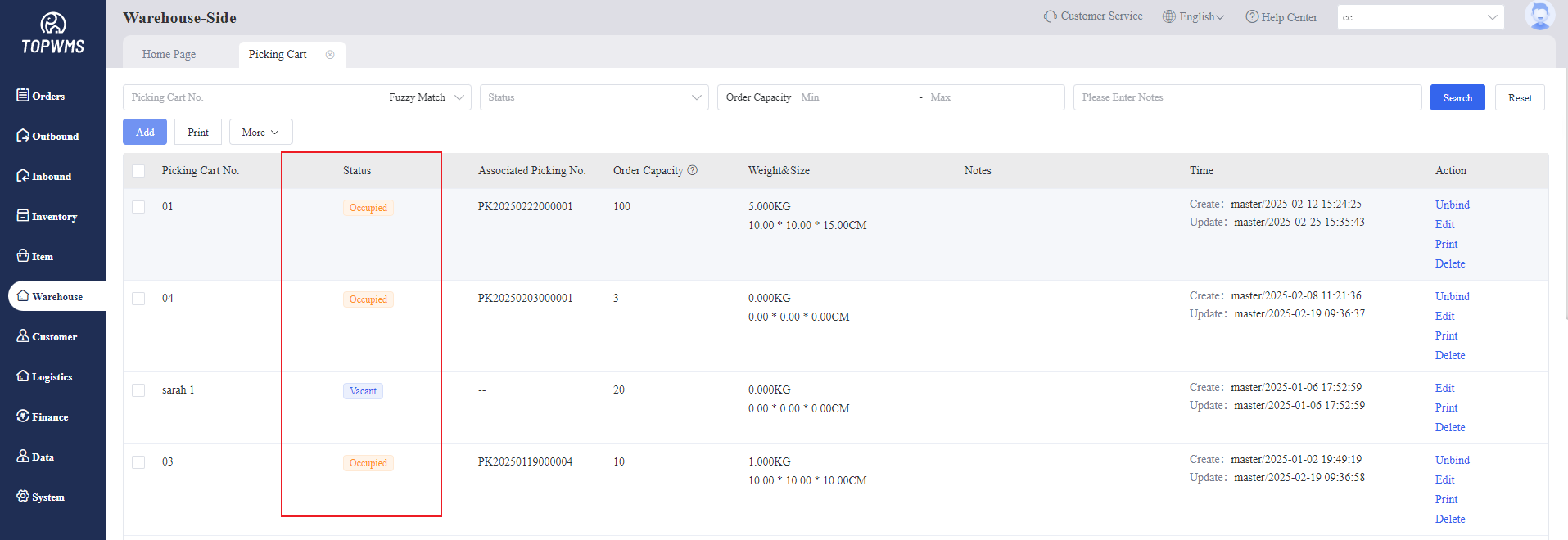
3. The status of the picking cart is displayed as "Vacant" at the beginning. When the picking cart is associated with the order, the status will change to "Occupied".
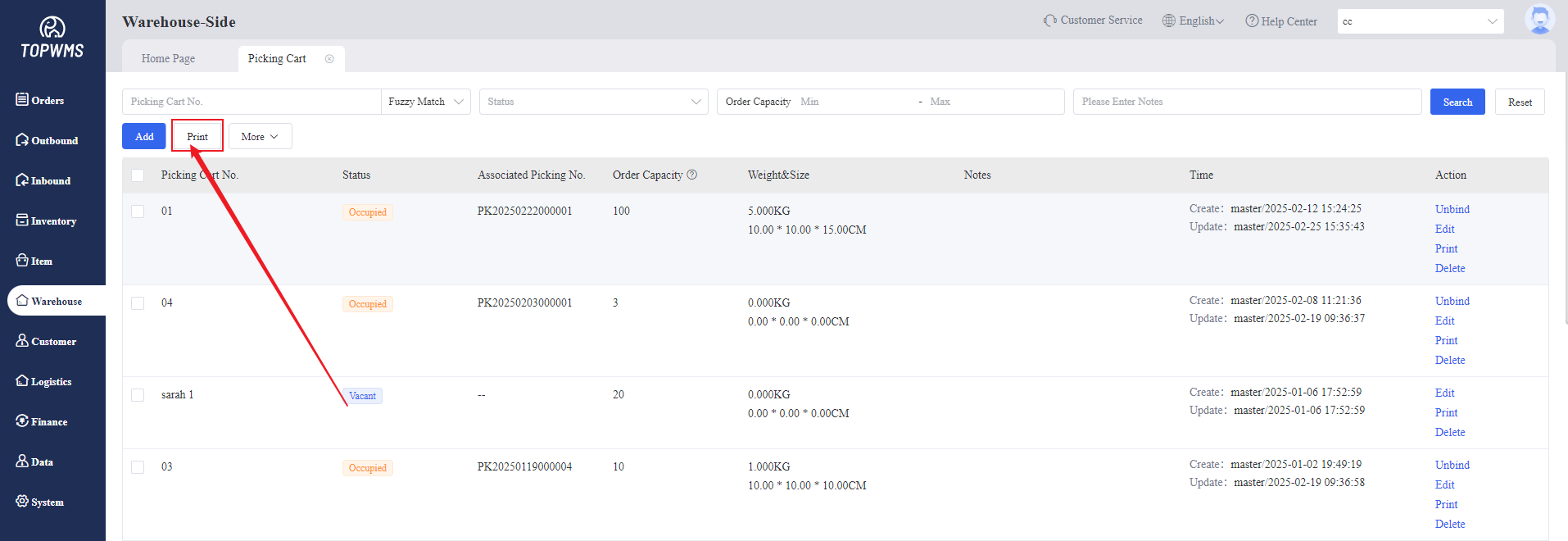
4. Print barcode - Stick it on the picking cart - Scan to associate orders
5. If you need to release the "occupied" picking cart due to special circumstances, you can click [Unbind] and the status of picking cart will change to "Vacant".