I. Introduction
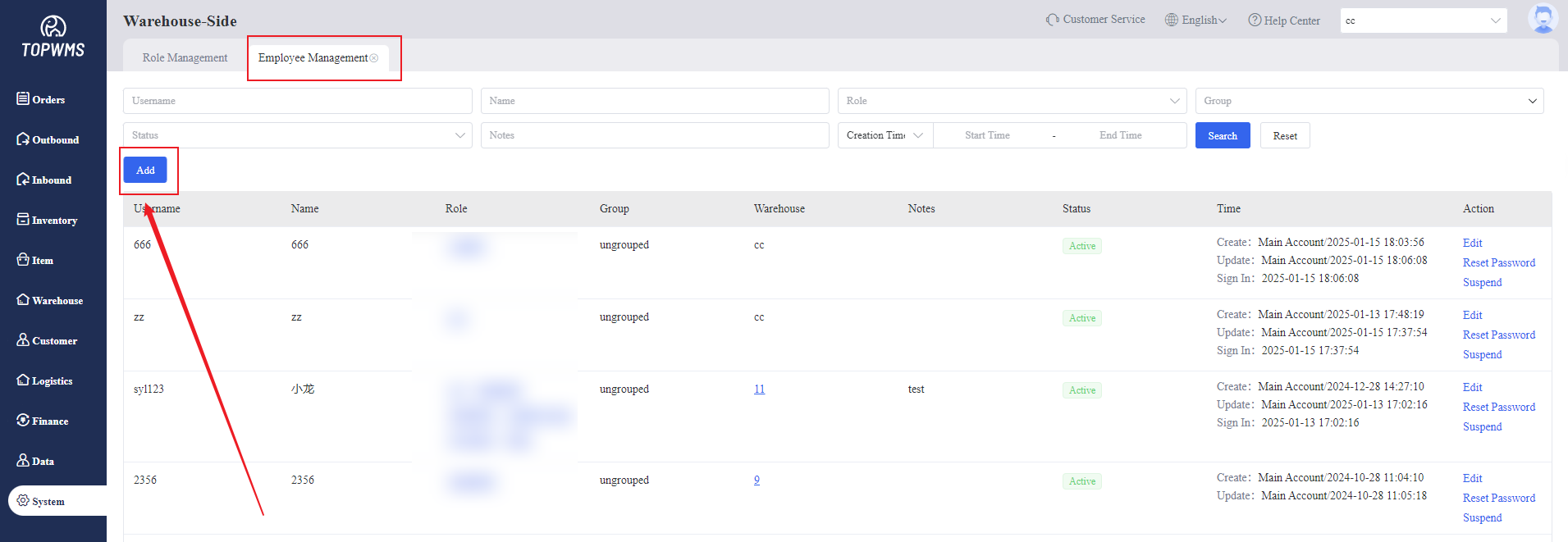
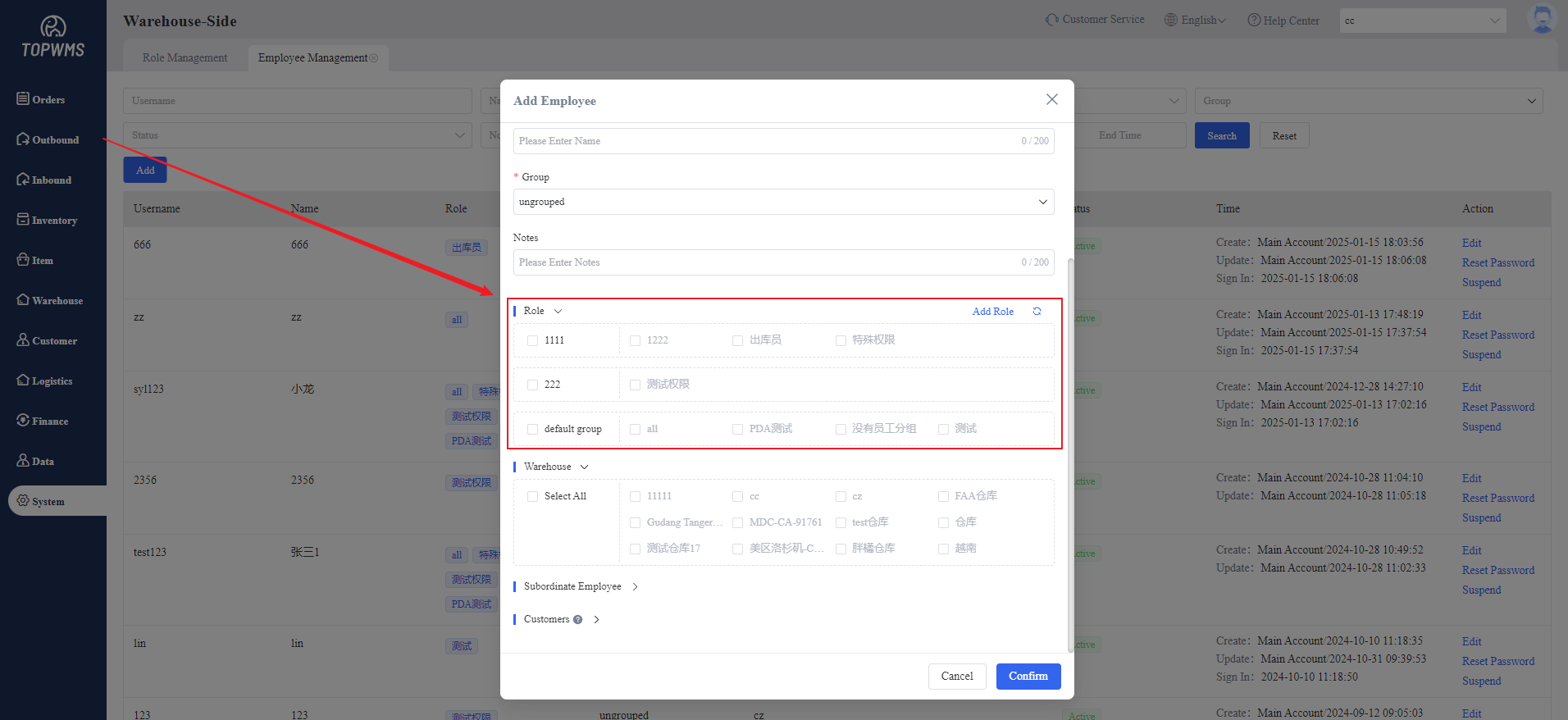
1. When creating a sub-account for an employee, you also need to assign a role to the employee. Different roles have different permissions.
Only when the role permissions are open can the employee view, edit, and perform other operations.
II. Tutorial Details
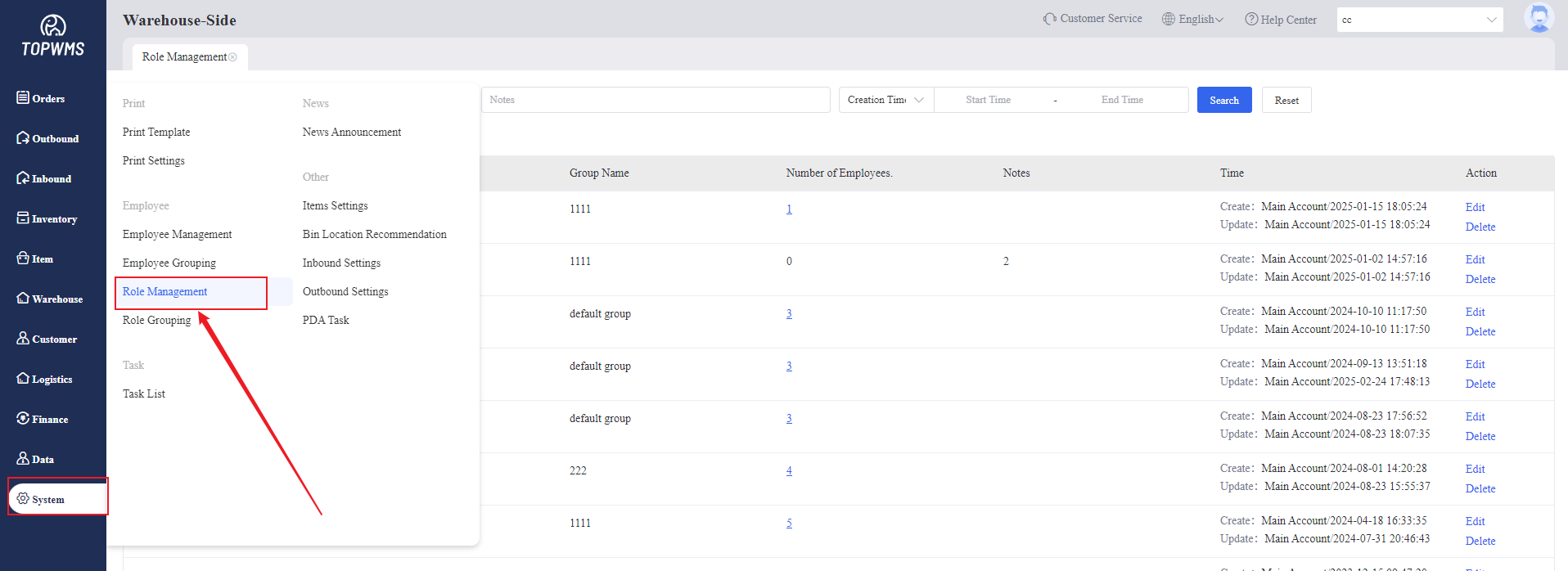
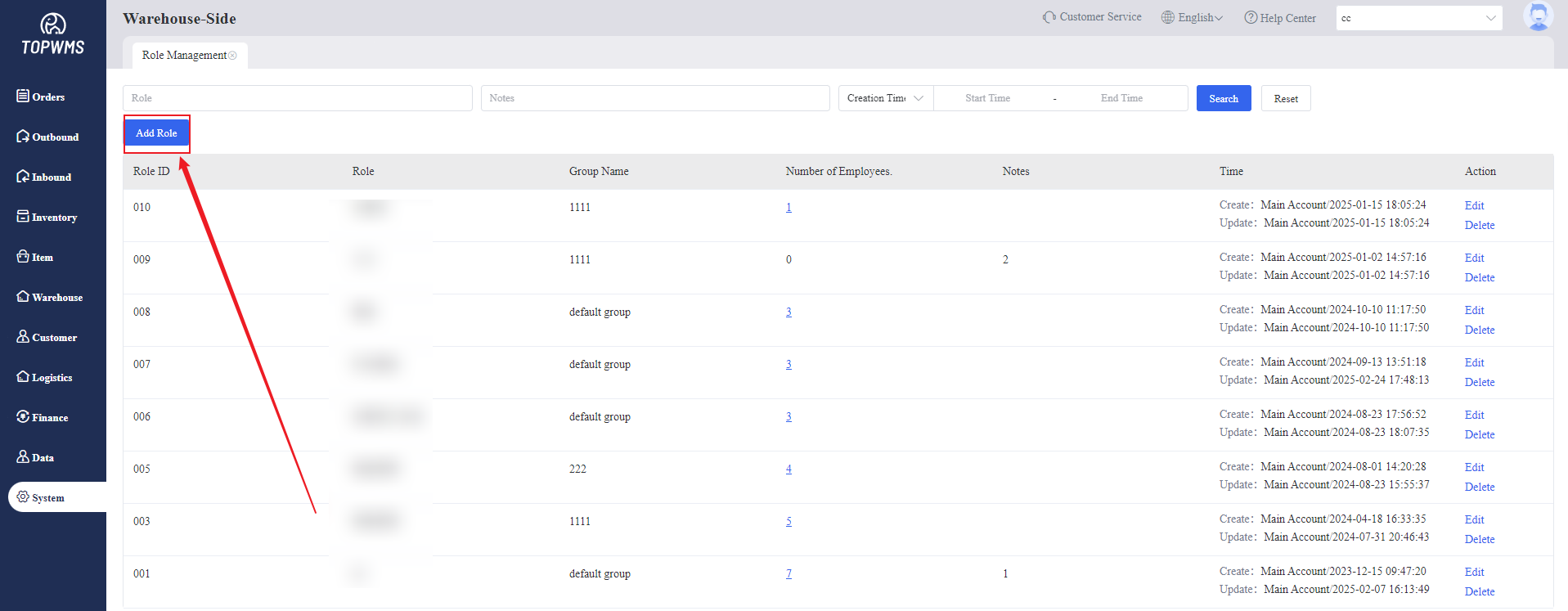
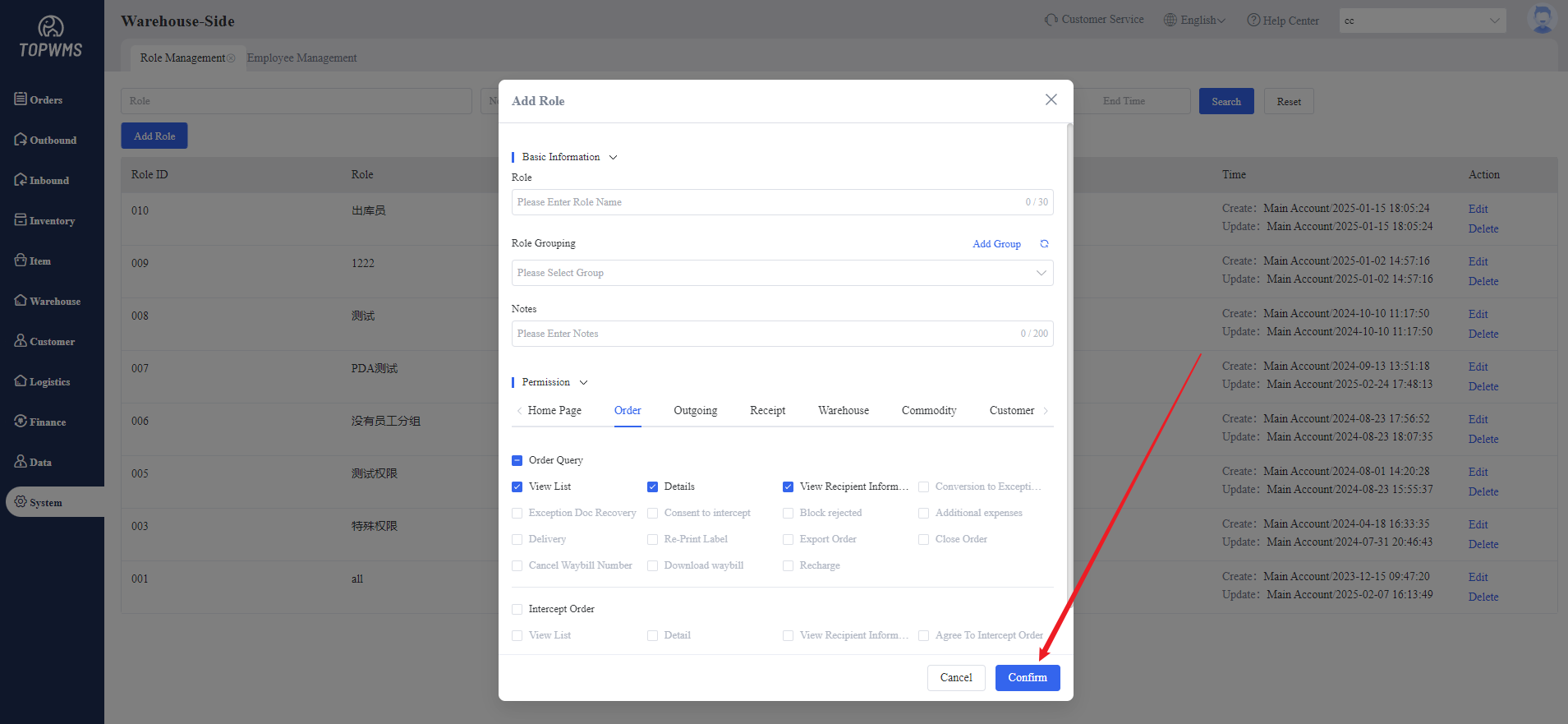
1. Click [System] > [Role Management] > Click [Add Role]
2. Setting the information of this role in the pop-up window
(1) Role: Customize the role name to identify different roles. It is recommended to name them according to different job positions.
(2) Group: Select role groups for easier management
(3) Notes: Optional, add notes for this employee
(4) Permissions: Set the permissions that the role can use. According to the functional modules, they are divided into home, order, outbound, inbound, etc. After checking the module, you can also check the specific functions. After setting, click [Confirm] to create the role.
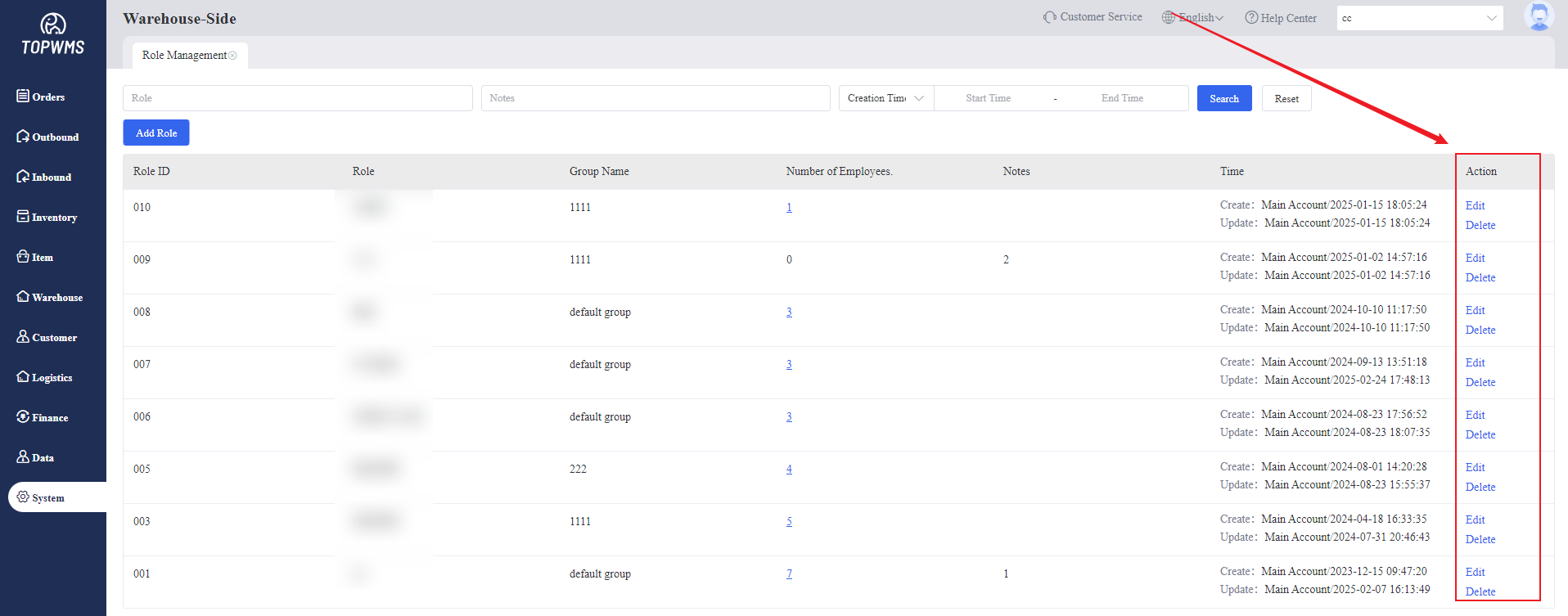
3. After creation, you can view the role, number of employees, group and other information in the [Role Management], and econdary editing and deletion are supported.
4. When creating an employee in [Employee Management] later, select the corresponding role and the employee will have the corresponding permissions.